

Describe your photos and see how many spots are left (Core 1.4.8)



 ·
28 min read
Core 1.4.8 · Photos and events
Describe your photos, and see how many spots are left.
Members can now say what each photo shows and put their photos in the order they want. Events show how many places are left, and a few things that broke after Fluent Community and FluentEvent updated work again.
Say what’s in each photo
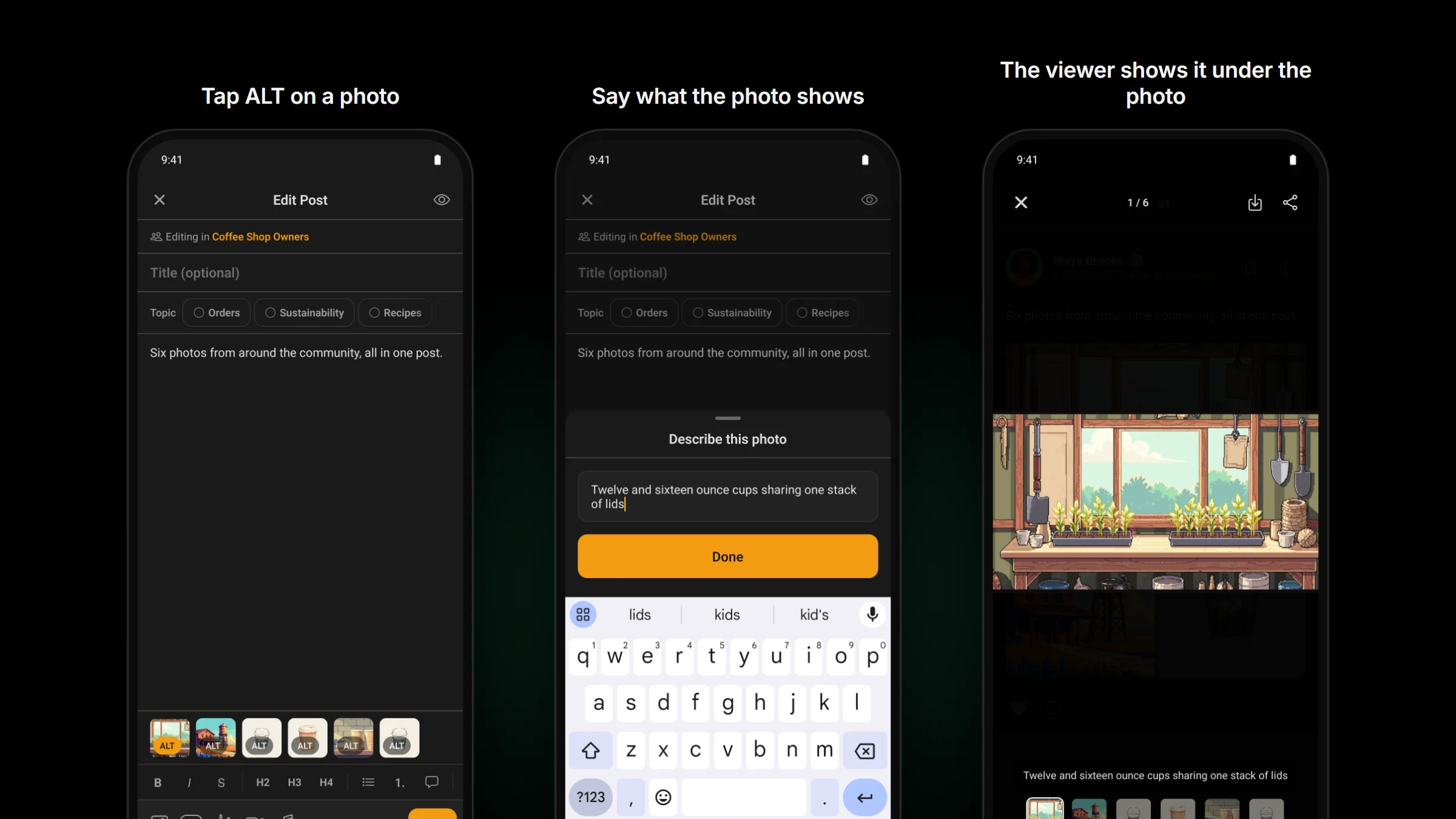
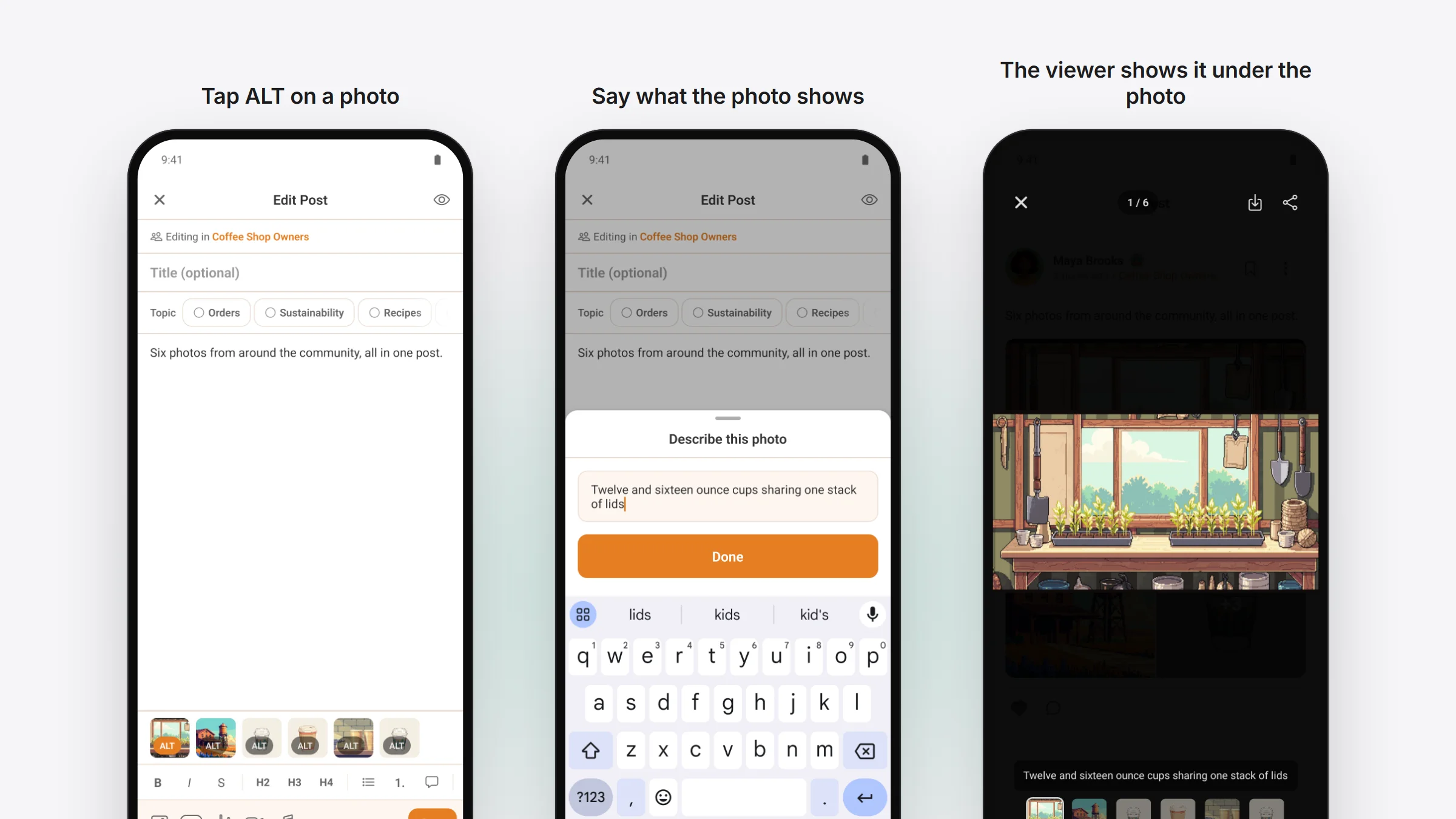
On a site running Fluent Community 2.15, every photo in the composer has an ALT button. Tap it and write what the photo shows, up to 300 characters.
- The description shows under the photo when someone opens it full size.
- Screen readers read it out, so a member who can’t see the photo still knows what’s in it.
- It works on posts and on comments. A description written on the website stays when the post is edited in the app.
Put your photos in the order you want
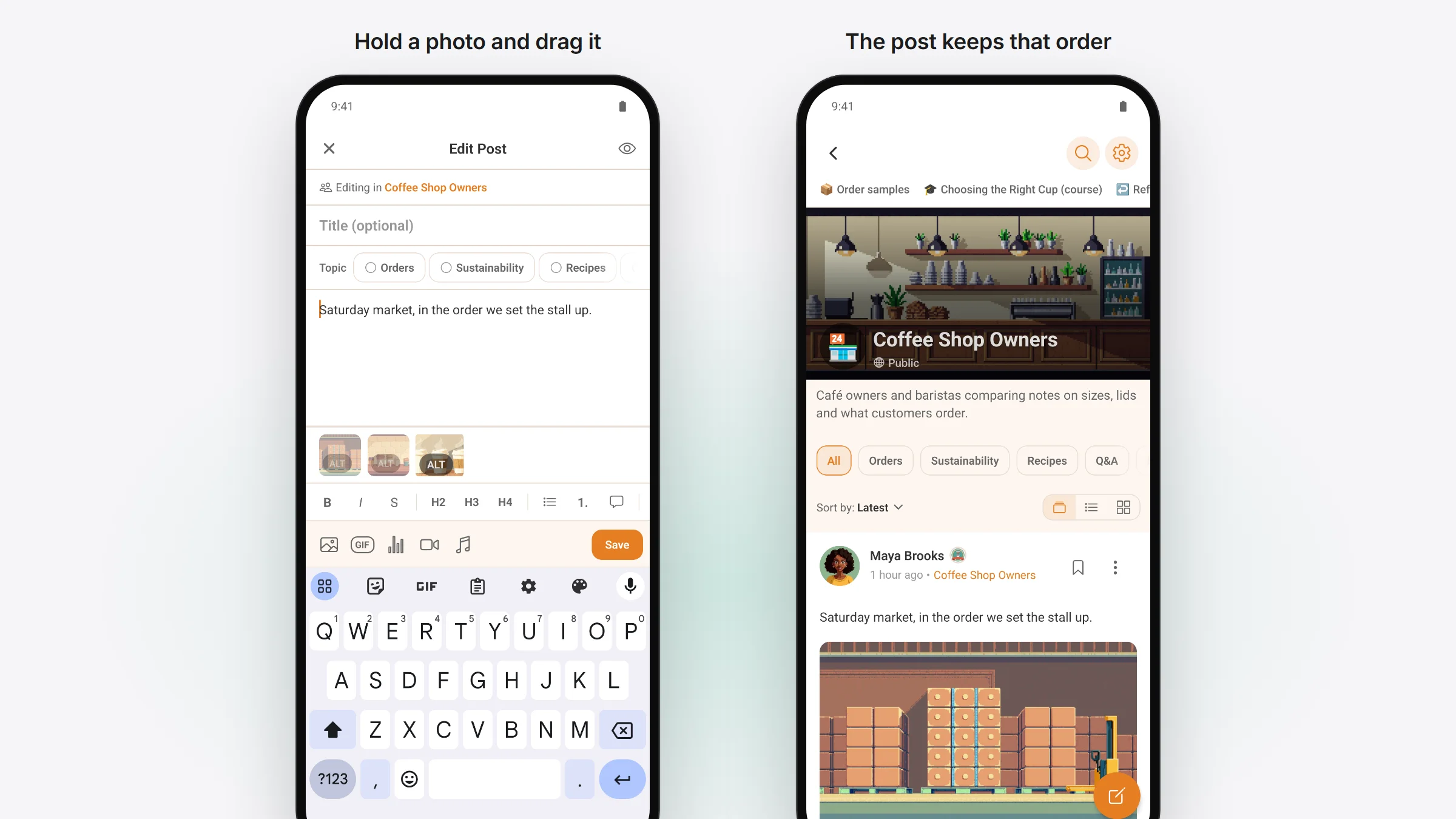
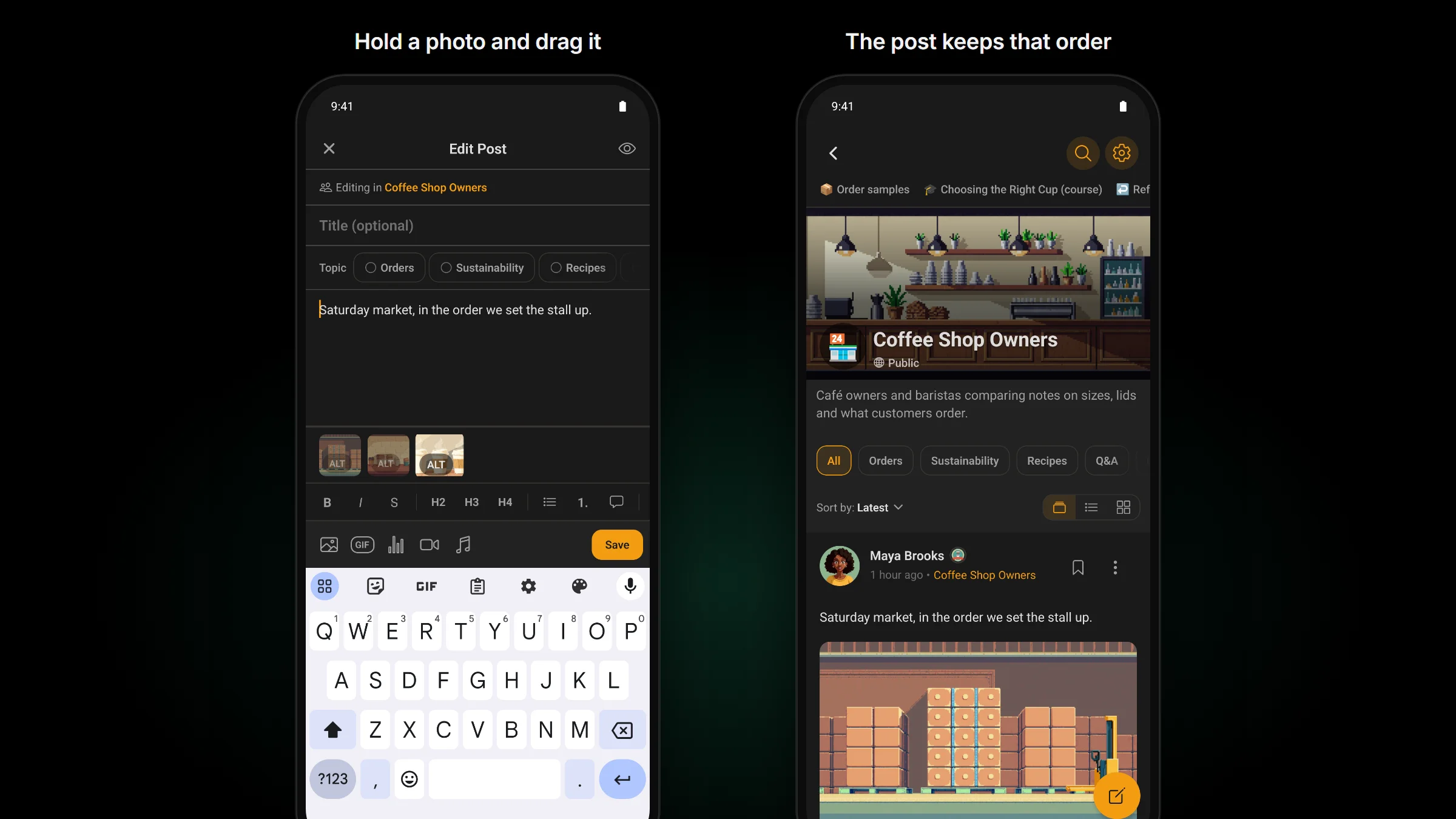
Press and hold a photo in the composer’s strip and drag it to its place. The post or comment keeps that order. This one works on every Fluent Community version.
- With a screen reader, each photo has Move earlier and Move later.
- A photo that’s still uploading waits at the end until it’s done.
Posts with several photos look like the website
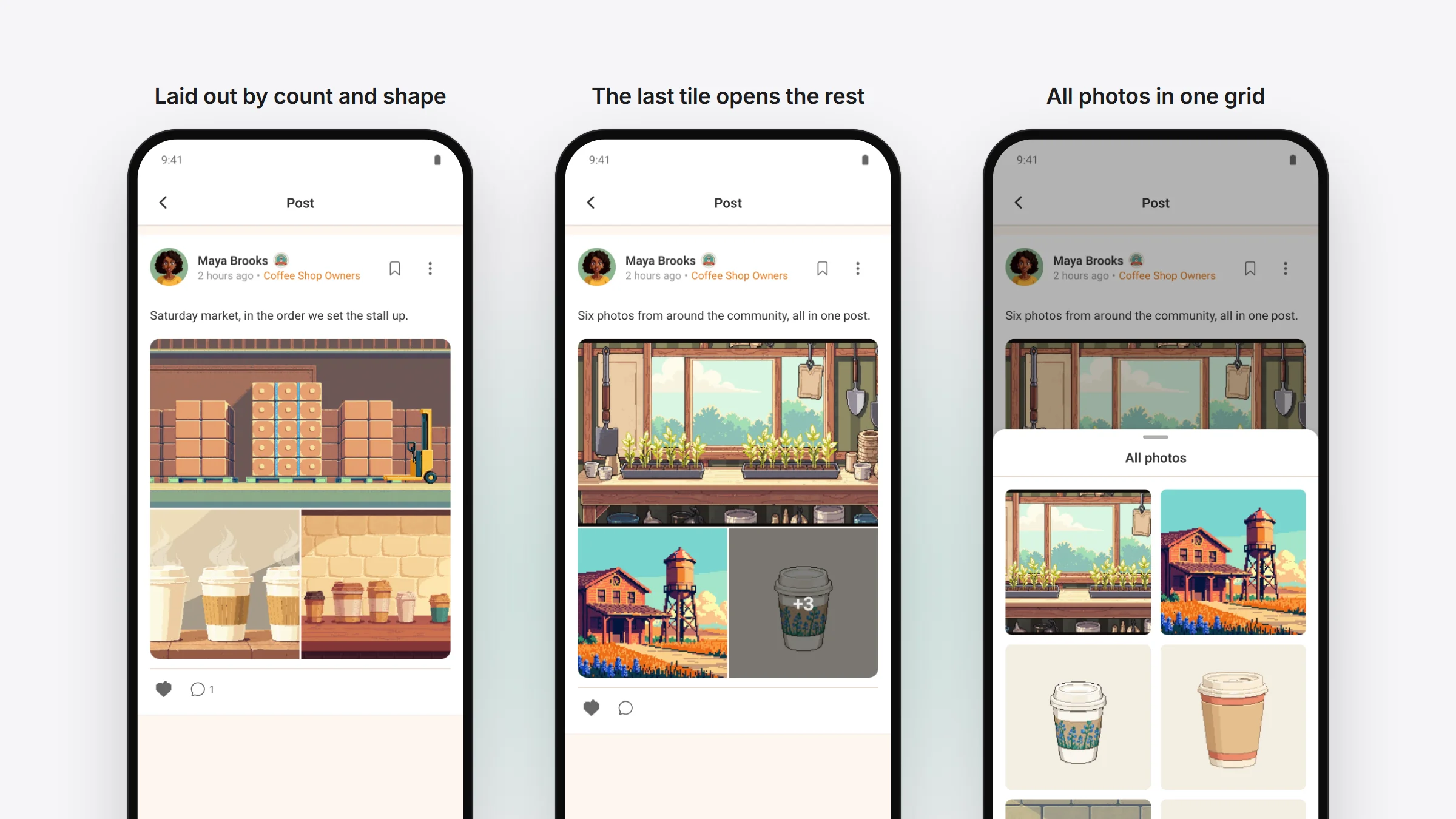
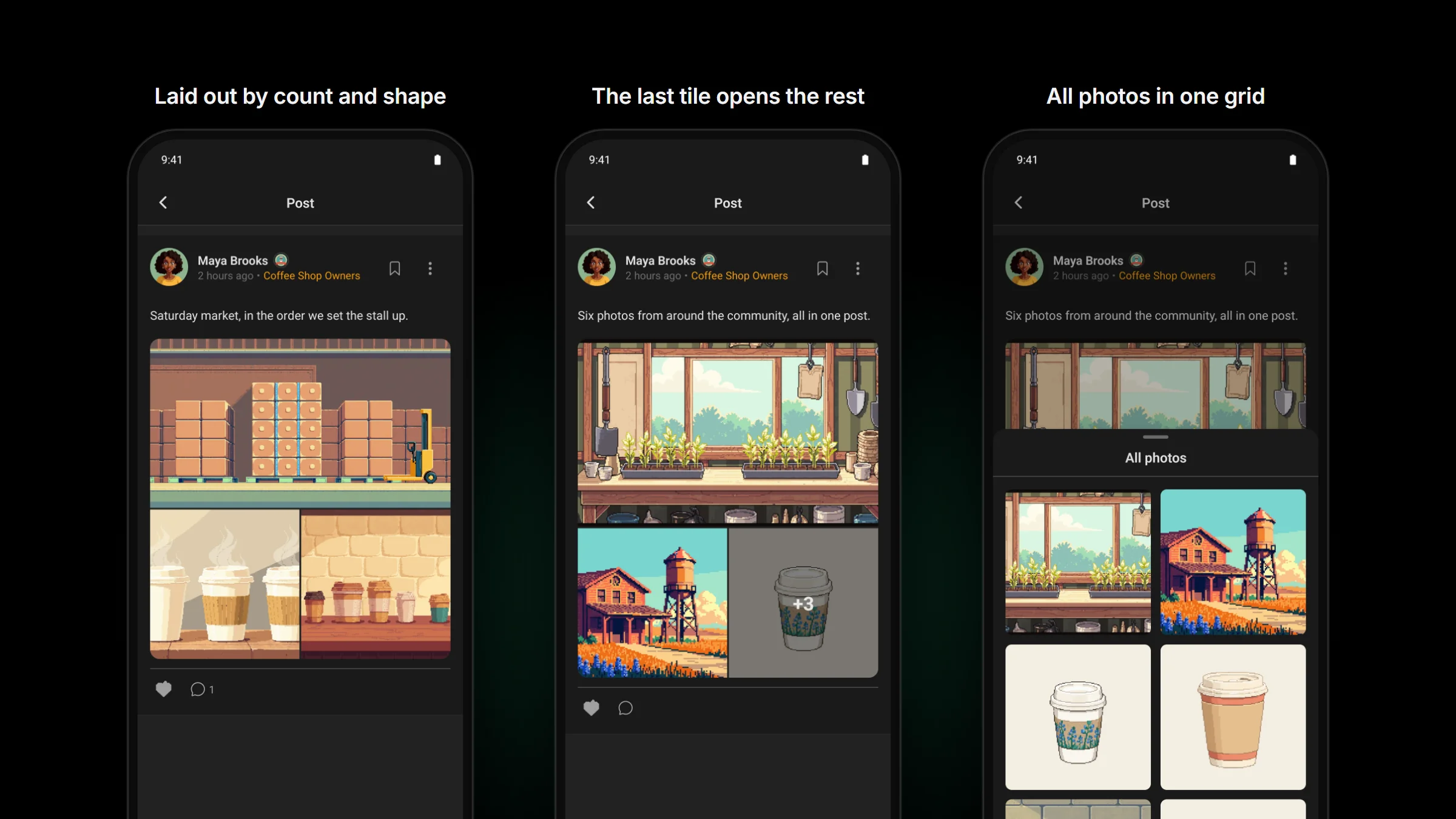
A post with two or more photos is laid out the way Fluent Community 2.15’s website lays it out: by how many photos there are and their shape. Comments with photos get the same treatment.
When there are more photos than fit, the last tile says “+3” (or however many are left). Tap it and All photos opens, a grid of every photo in the post. Tap one to see it full size.
See how many spots are left
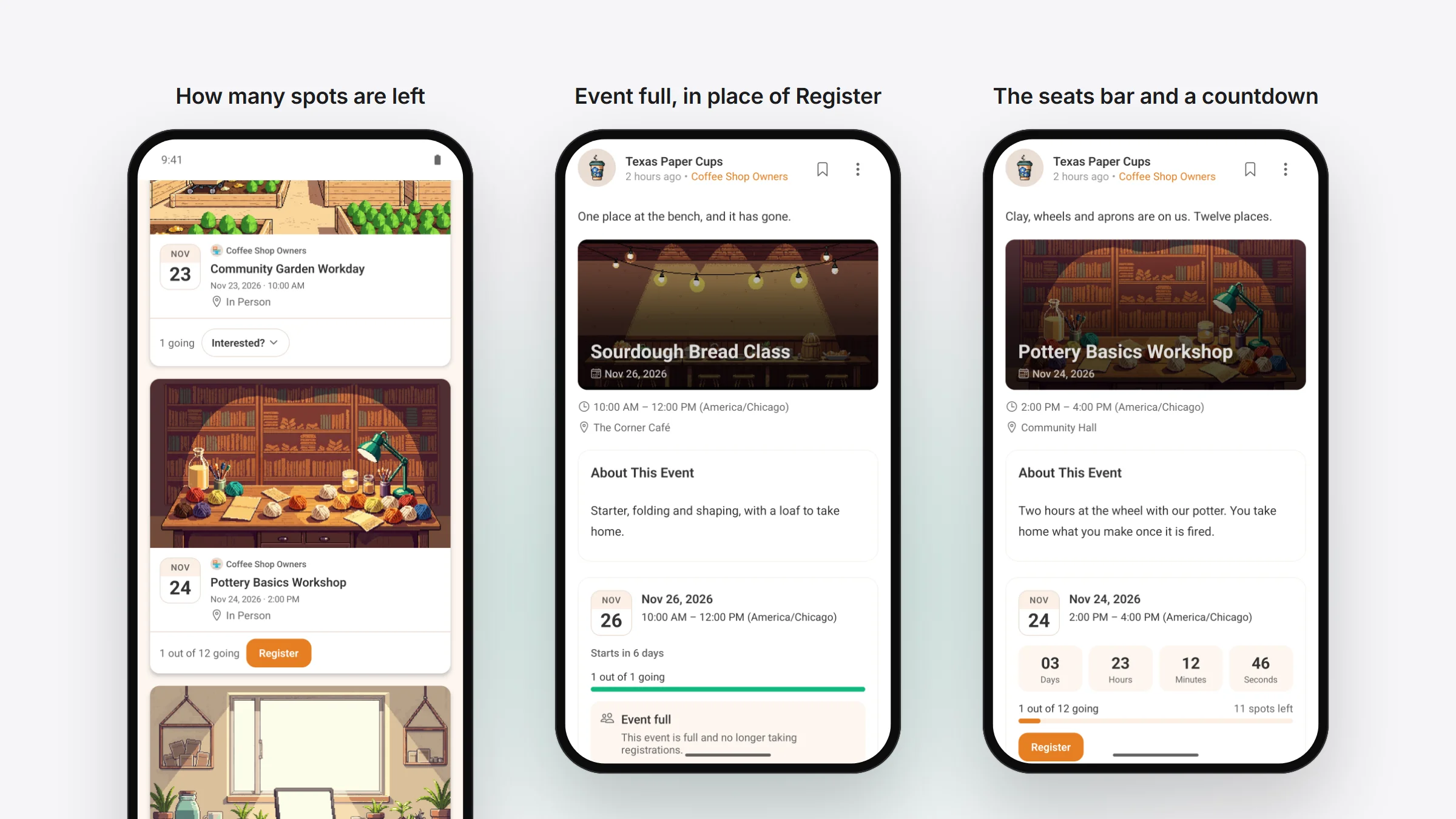
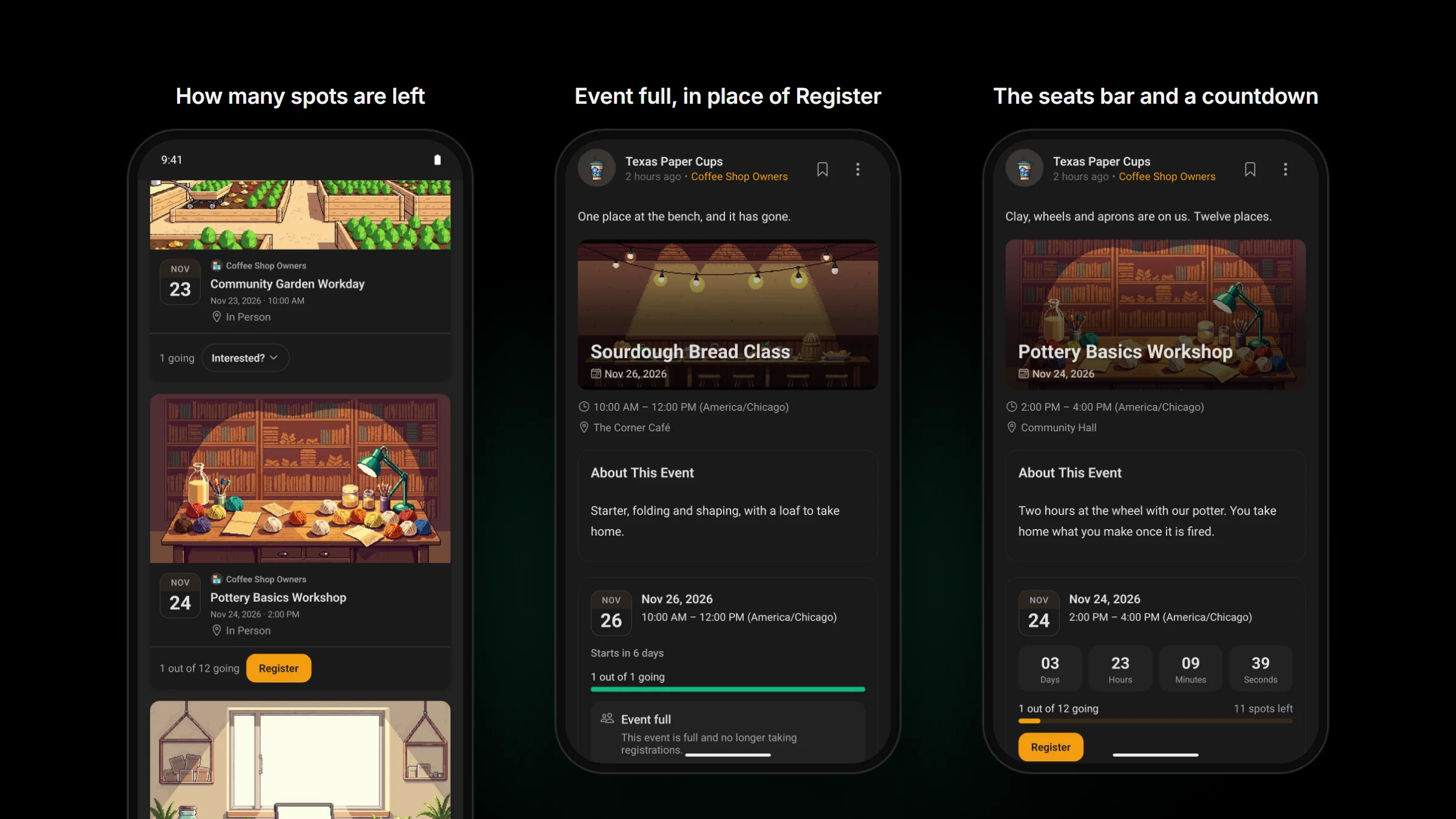
With FluentEvent 1.1.0, an event with a limited number of places tells members where it stands.
- The event card reads “3 out of 10 going”, and the event’s page says how many spots are left.
- When it’s full, members who haven’t got a place see Event full where Register used to be.
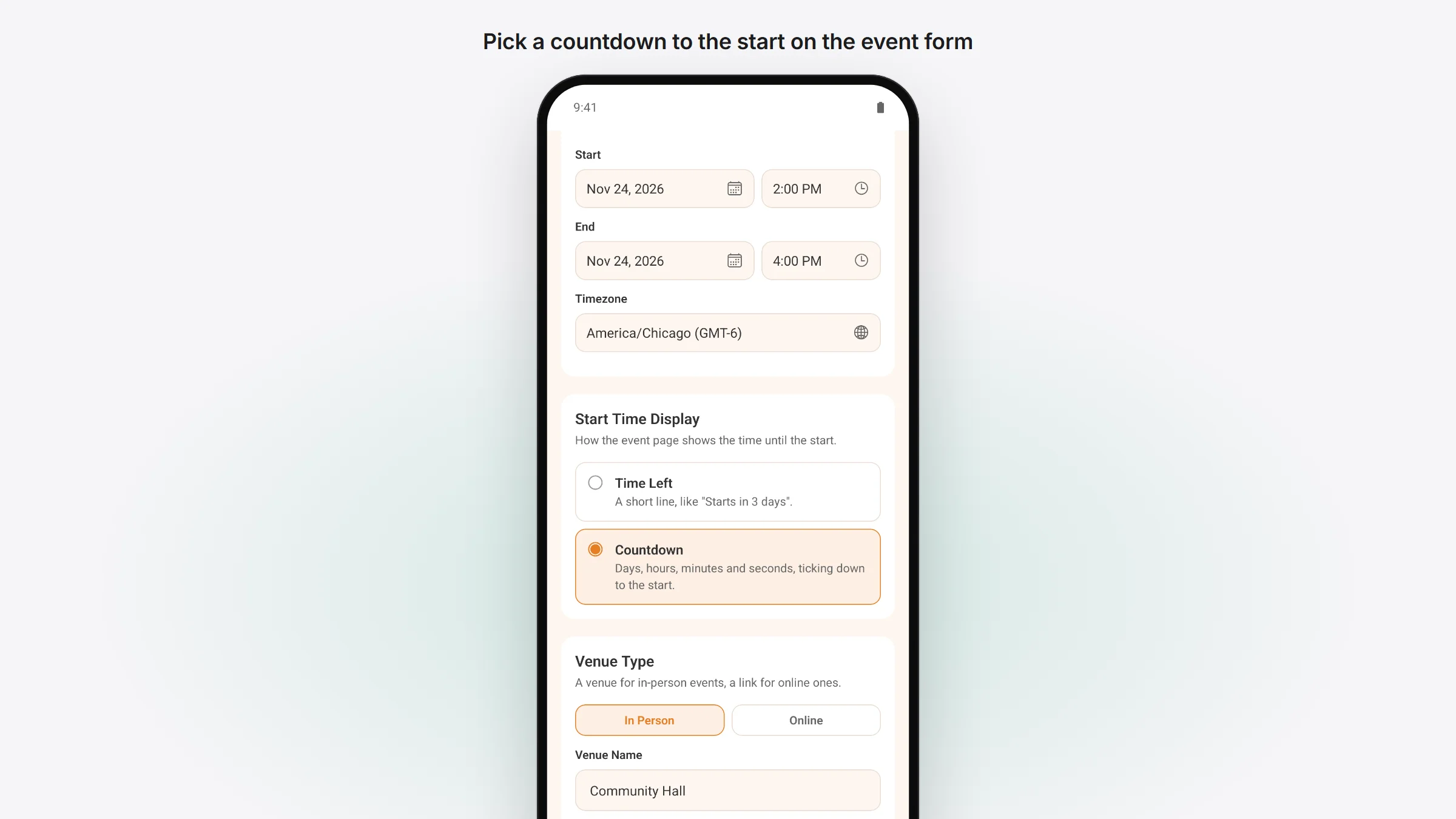
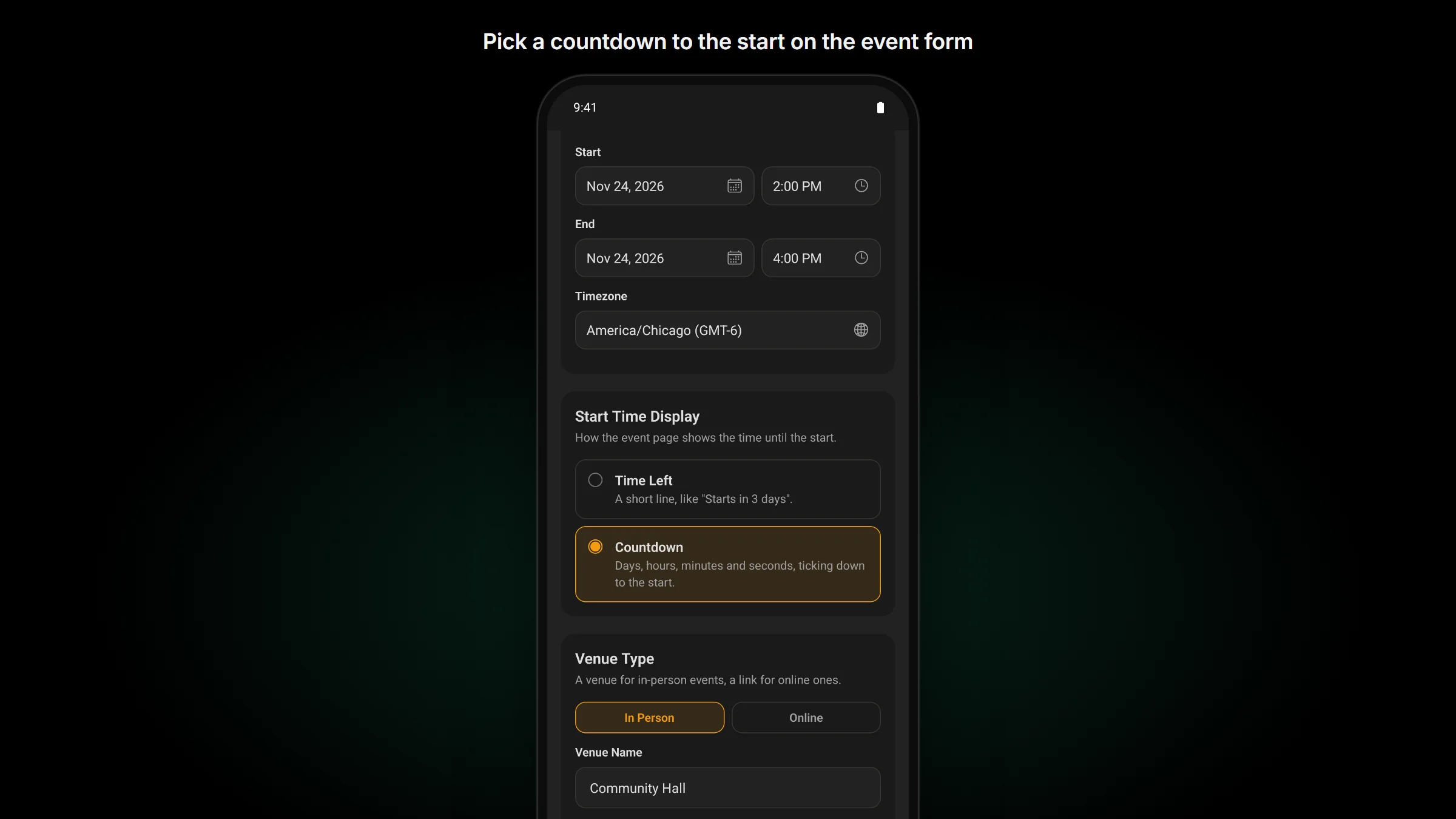
- The event’s page shows how full it is, FluentEvent’s own notice when it’s full, and a countdown to the start if the host turned one on.
Hosts set this up on the event form when they create or edit an event in the app: Capacity, “Show how many spots are left”, and Start Time Display (Time Left or Countdown). The switch for counting guests now sits under Guest control with them.
Cancelling works again too. On FluentEvent 1.1.0, a member who tapped Cancel on an open event got “Please choose going or not going.” Now Cancel gives up their place and Register shows again. Sites still on FluentEvent 1.0.1 work as before.
Mark one notification as read
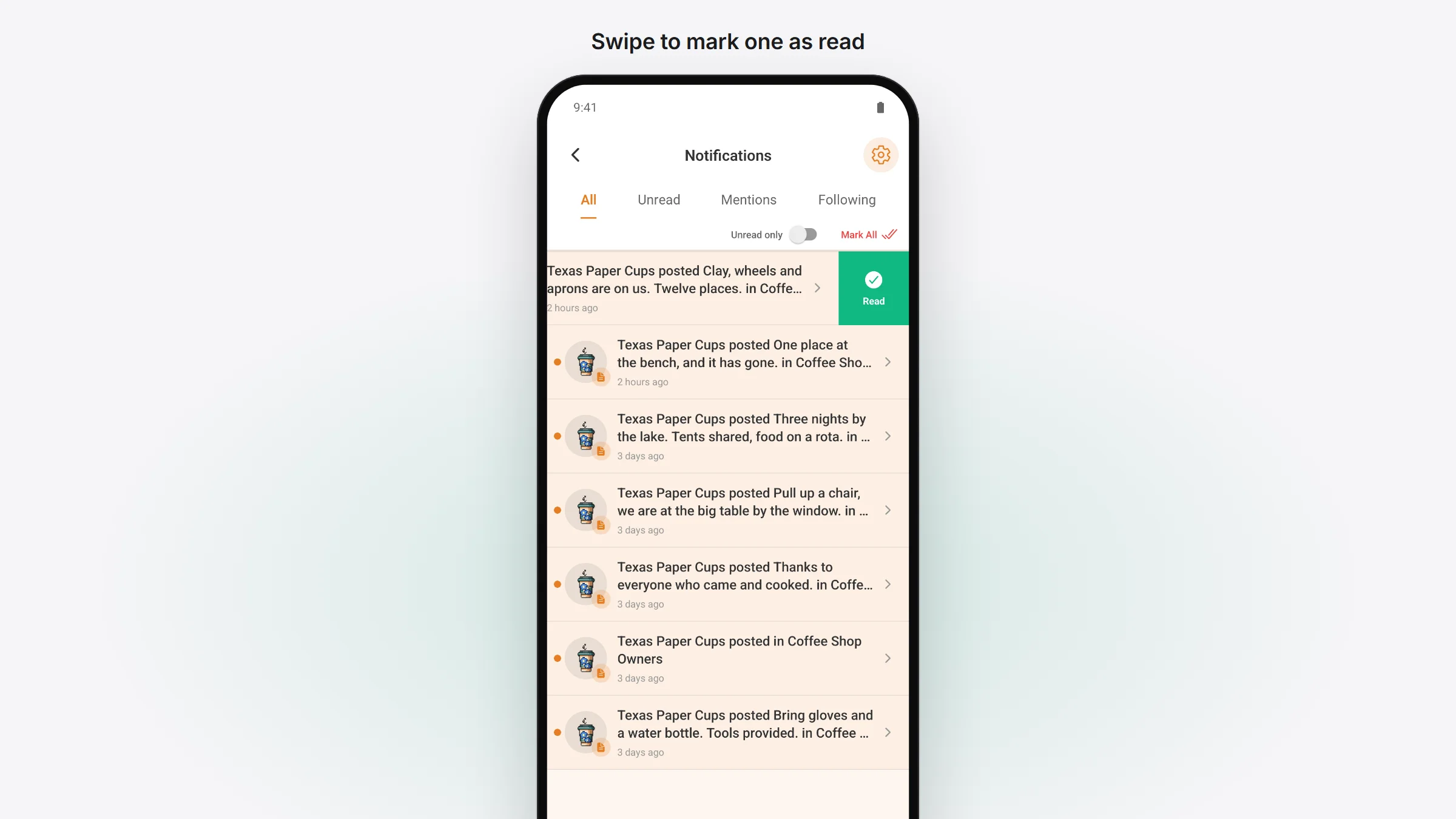
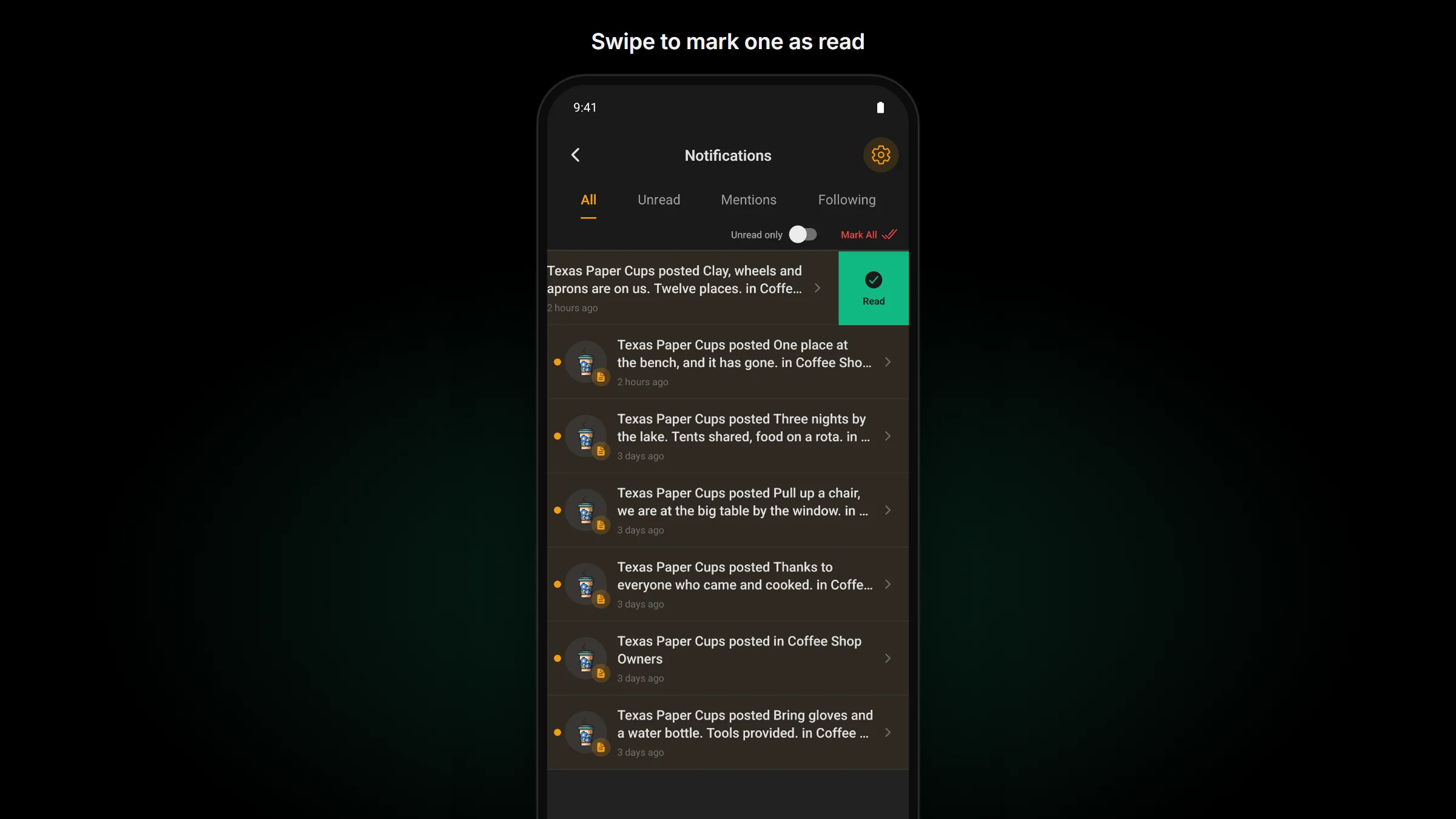
On a site running Fluent Community 2.15, swipe a notification and tap Read. Only that notification is marked as read. Tapping a notification still marks everything about that post as read, the same as on the website.
The cart shows what’s in a bundle
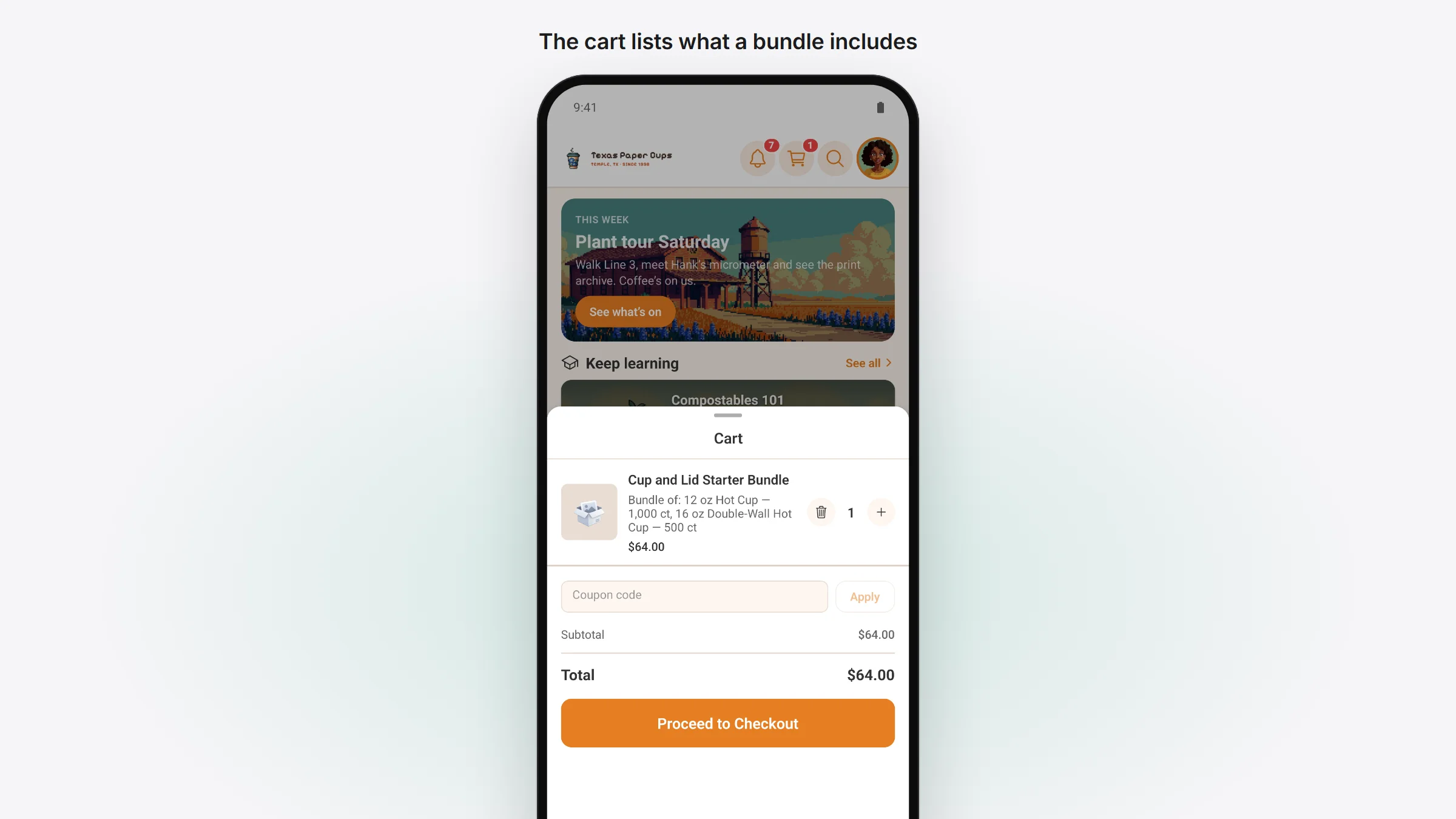
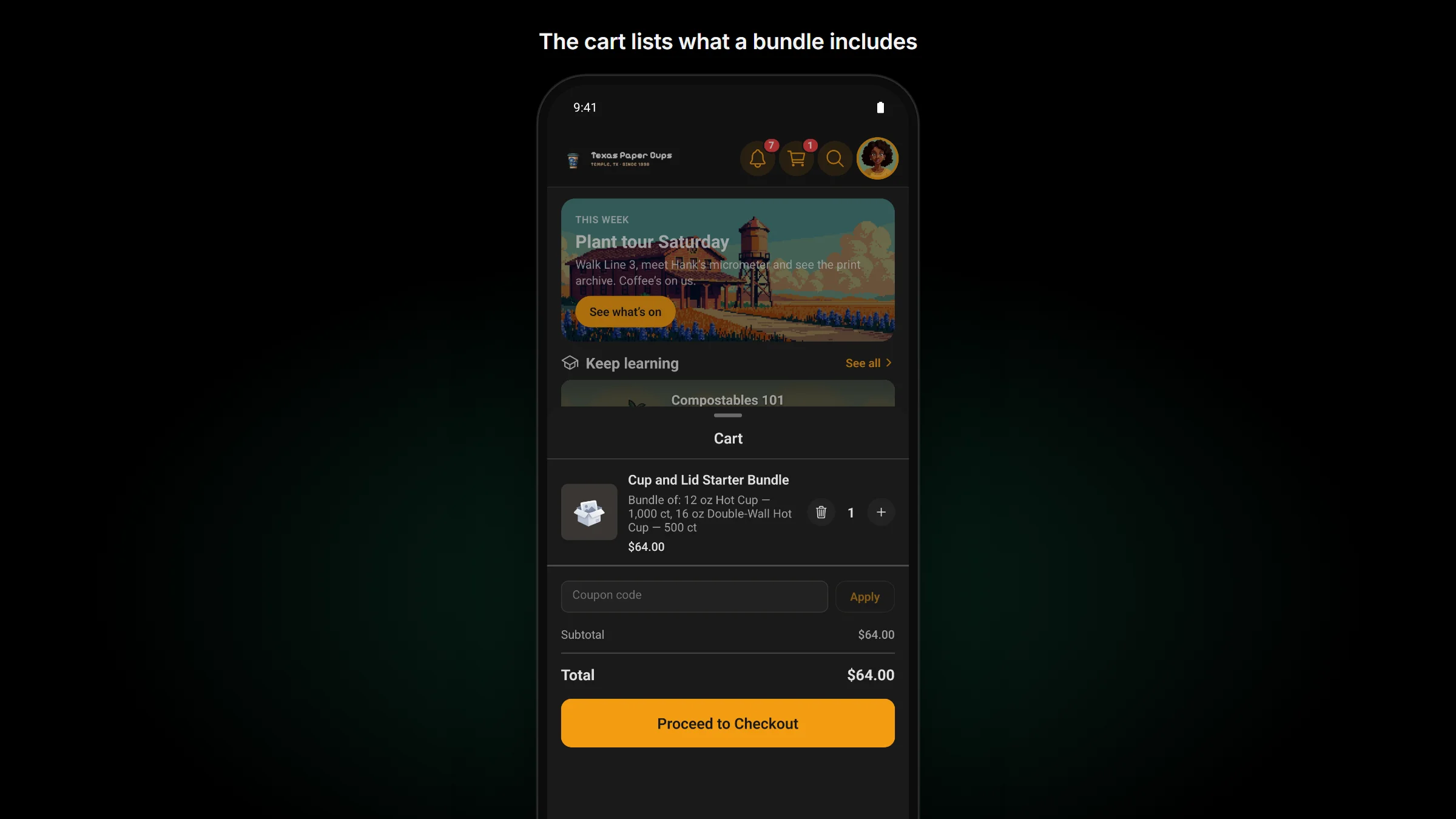
When a member adds a bundle to their cart, the app now lists what’s in it under its name (“Bundle of: …”), the same way FluentCart’s own cart does. Update the TBC Community App plugin to 1.4.8 for this.
Photos stay put
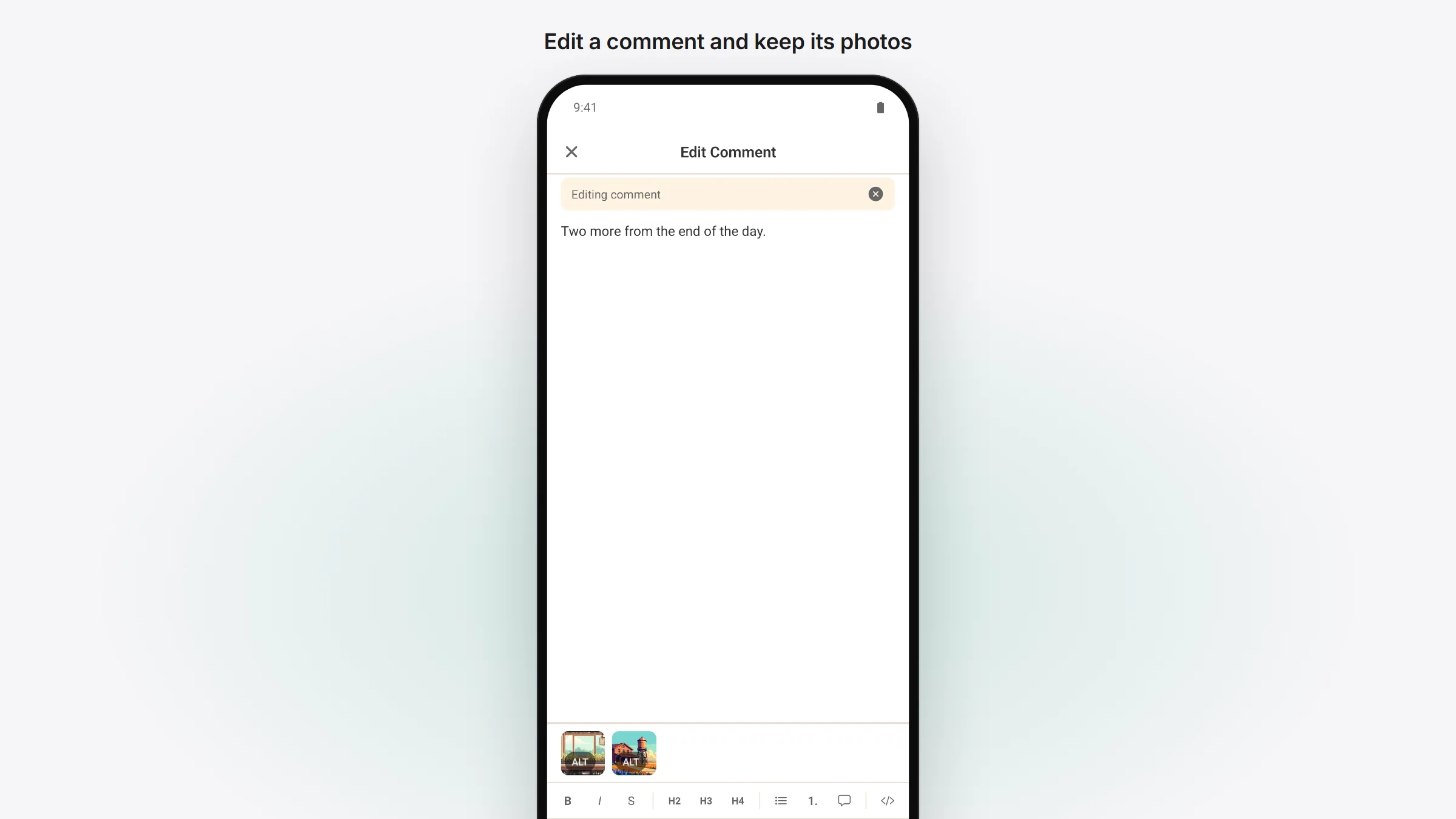
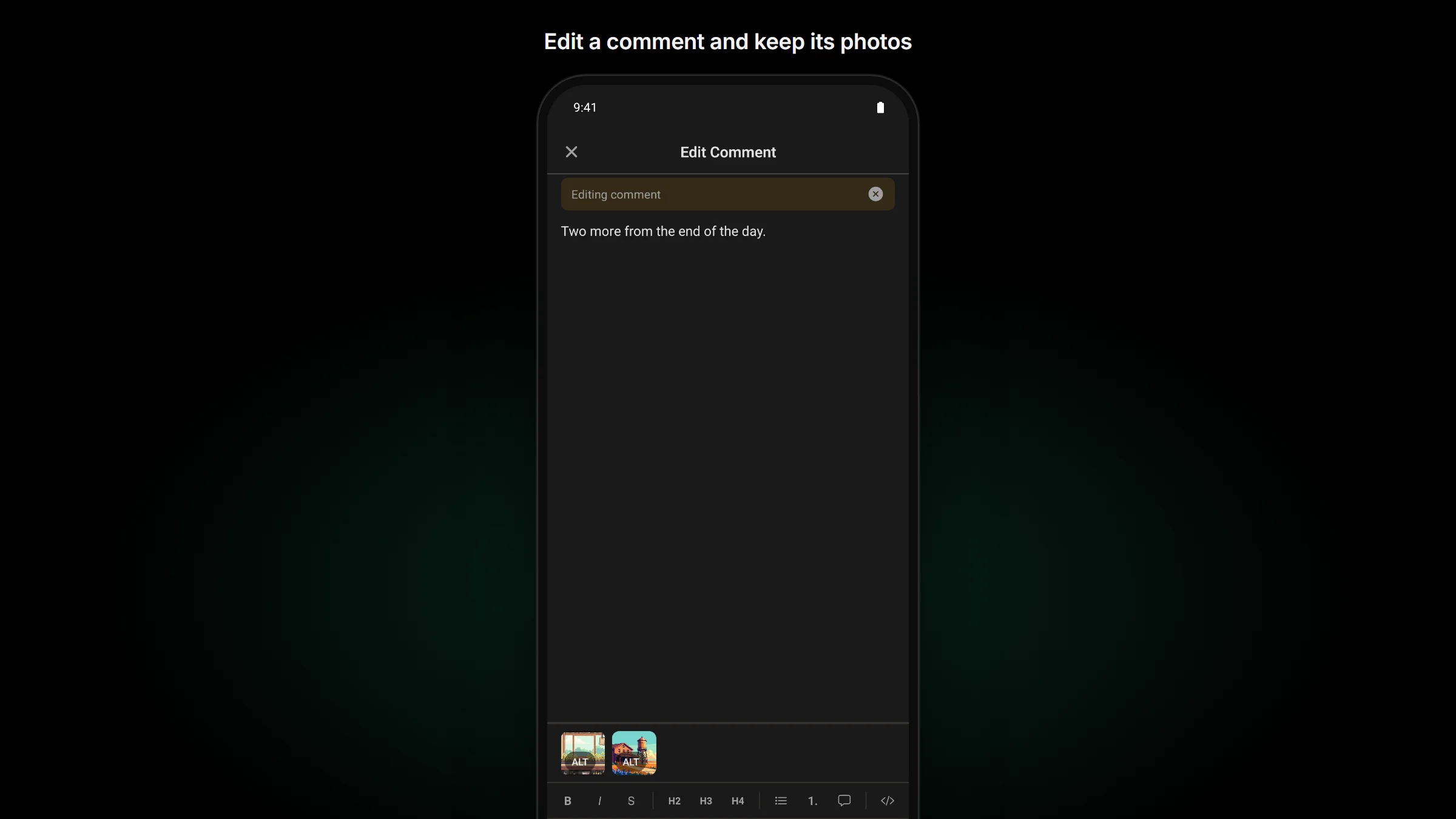
- Editing a comment keeps its photos. Saving an edited comment used to delete its photos or GIF. Now the edit opens with them, and you can keep, remove, reorder or describe them the same way as on a new comment.
- Photos from an iPhone show on the website. iPhones save photos in a format web browsers can’t open, so the website showed “Failed to Load” unless your host’s server converted them. The app now sends a JPEG, for posts, comments, messages, profile photos, covers and event covers.
Your site’s settings reach the app
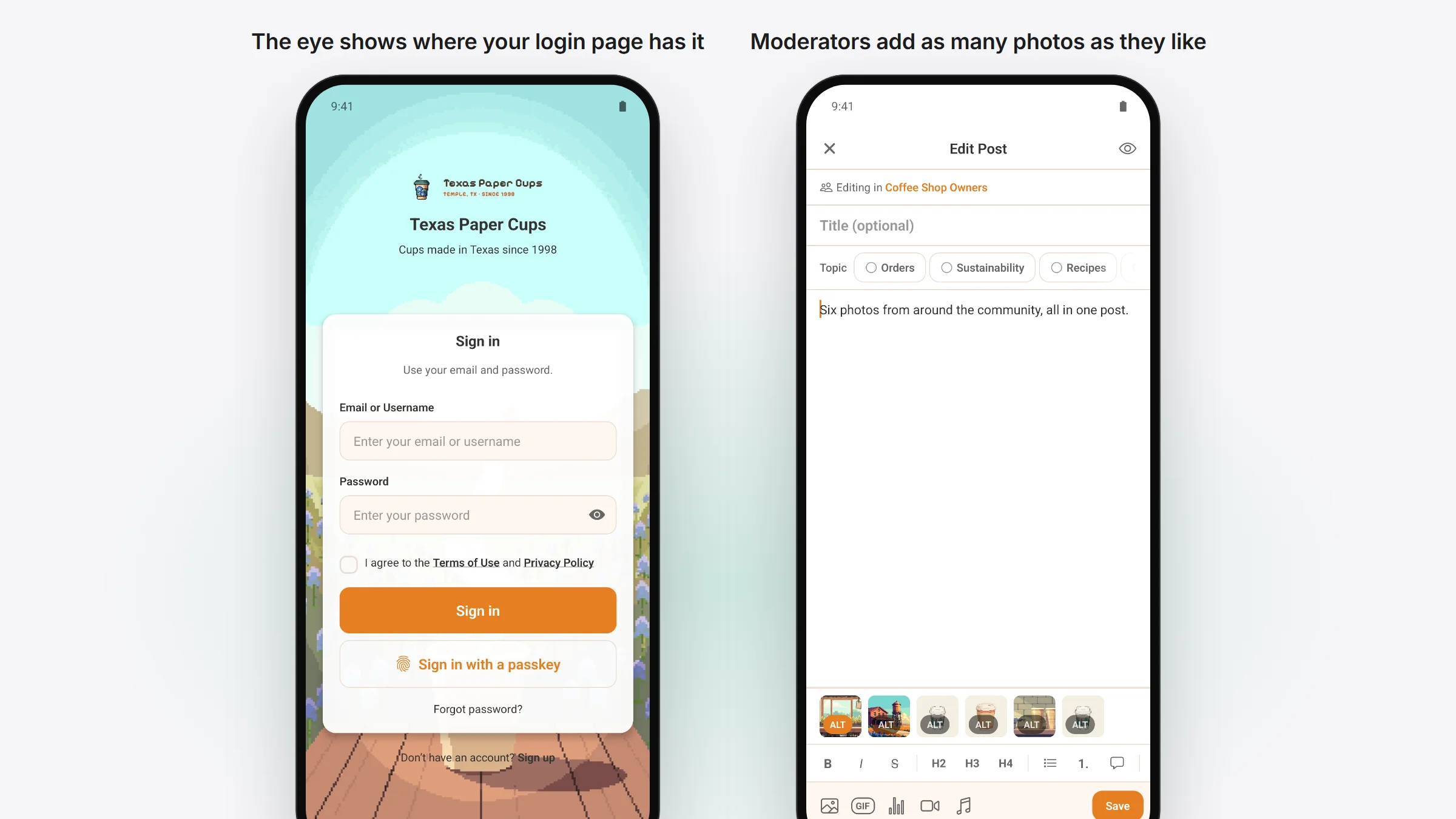
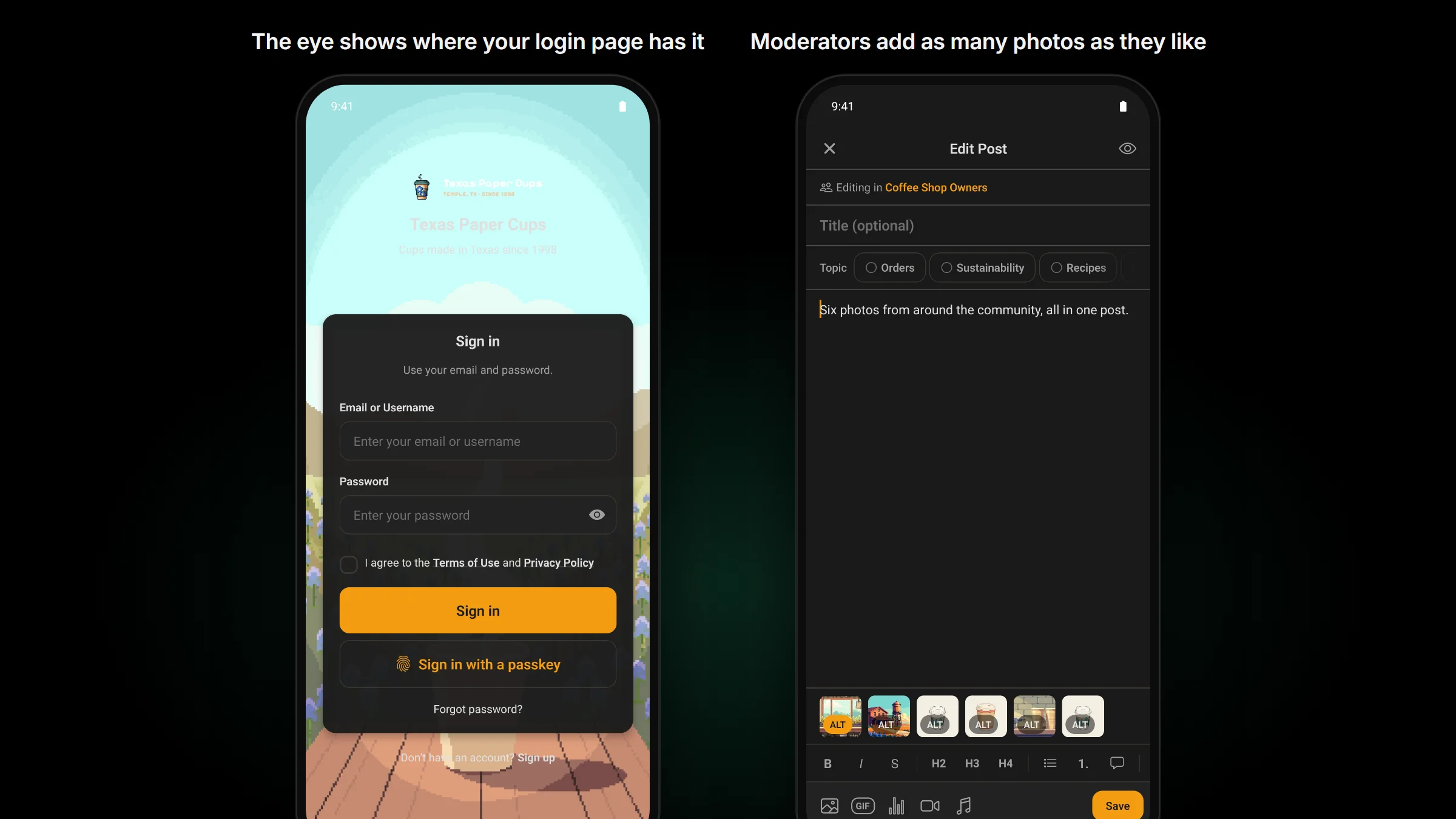
With the TBC Community App plugin 1.4.8 and Fluent Community 2.15, the app follows more of what you set on your site.
- Site administrators and community moderators can add as many photos to a post as they like, the same as on the website.
- If your site allows no photos in posts, the app shows no photo button.
- The eye that shows your password on sign-in and sign-up appears only if your site’s own login page has it.
- If your host has moved Fluent Community’s web address on your server, the app finds it there.
Managed: the setup goes one step at a time
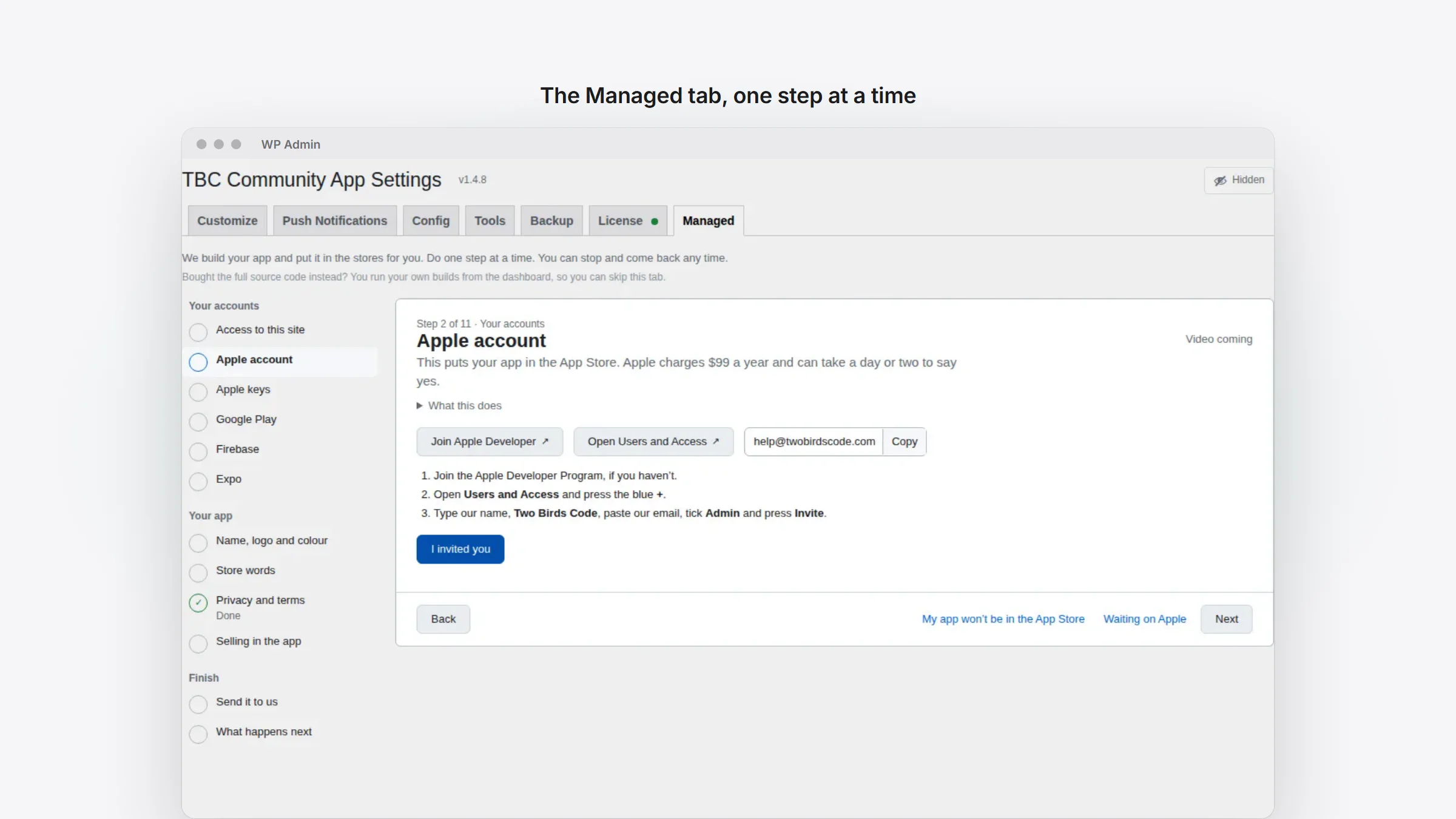
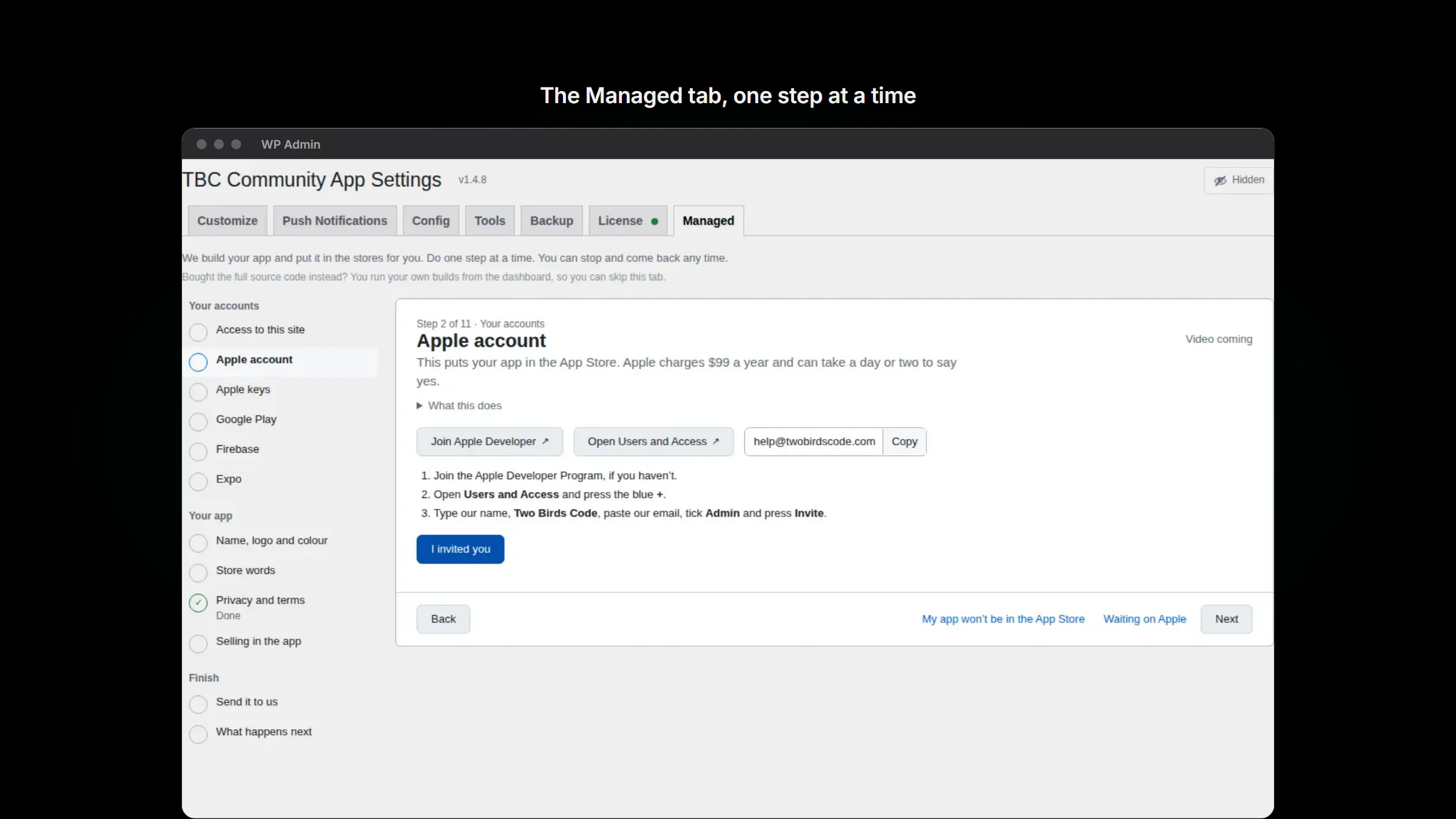
If we build your app for you, the Managed tab in WP Admin is now a list of steps, grouped under Your accounts, Your app, Selling and Finish. You see one step at a time with Back and Next, and each one says why it’s there.
- Each step has a short how-to video, or says “Video coming” until its video is up.
- A finished step folds into one Done line with a Change button.
- Waiting on Apple or Google? Mark the step and carry on. Going to one store only? Say so in one click.
- Upload one square logo and pick one colour. Your iPhone and Android icons, the notification icon and the opening screen are all made from them.
- You can do every step before you buy. Only Send needs your licence, and it doesn’t wait for every step: it lists what’s still to do, and Send changes sends the rest later.
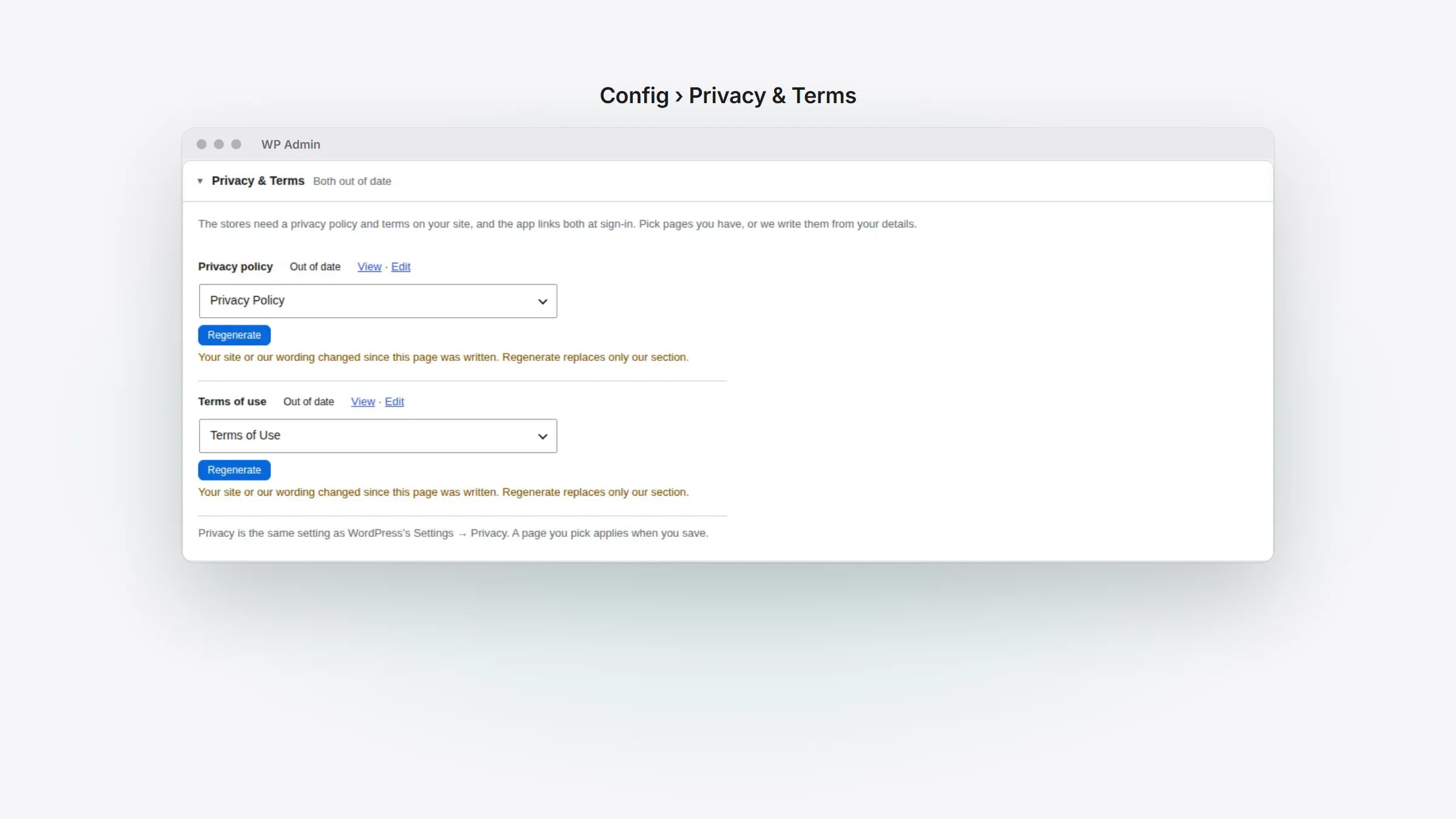
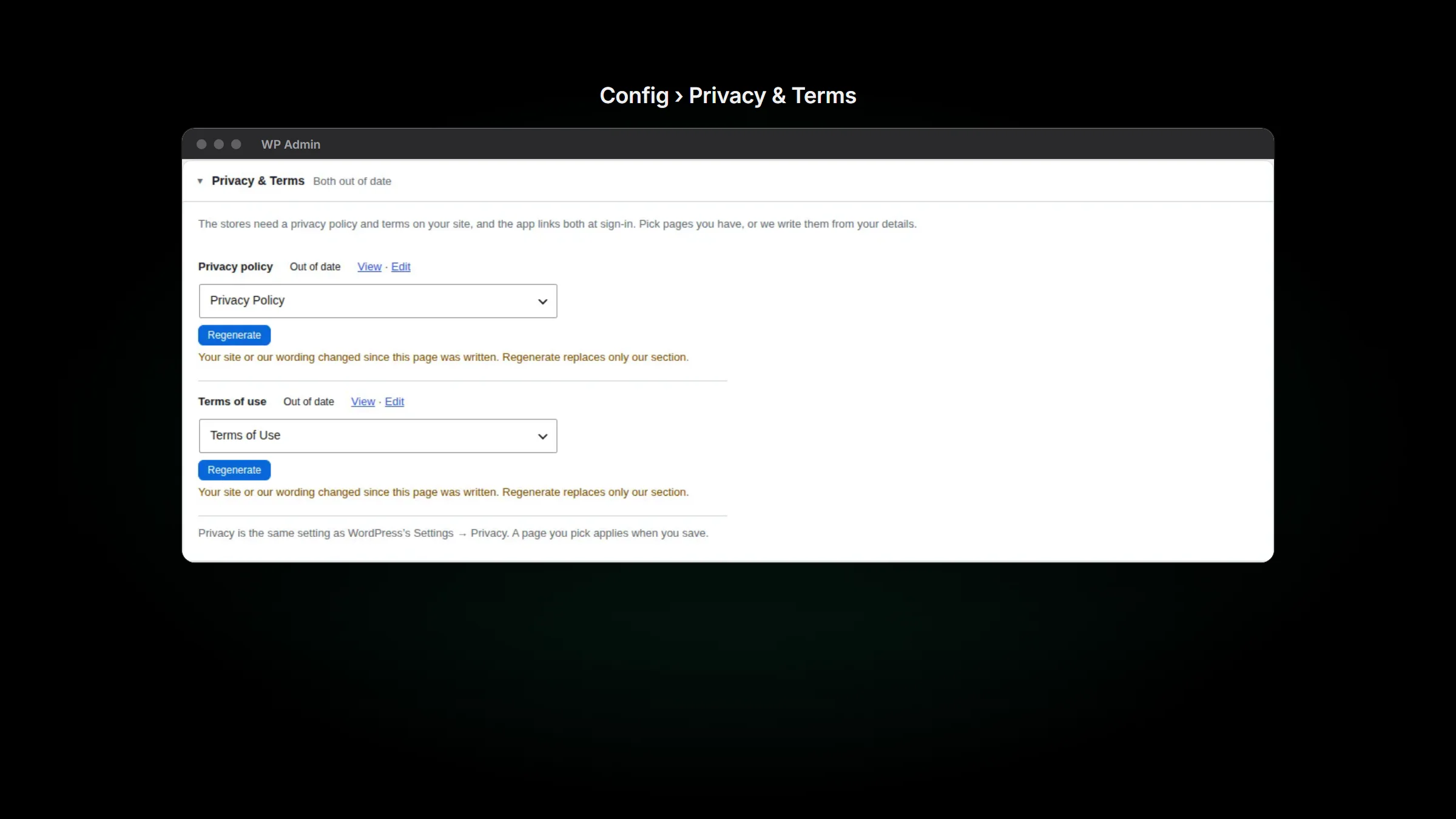
Privacy & Terms has moved to the Config tab, and it works without a licence. Pick a page you already have, or press Create page and the plugin writes one from your details. A page the plugin wrote says Out of date when something has changed, and Regenerate replaces only our part of it.
Plugin updates are signed
Every update to our WordPress plugins now carries a signature. WordPress installs it only if the signature checks out and it matches the file that was downloaded. If anything is off, the update is refused with a line saying why, and the version you have keeps running. An update that needs a newer WordPress or PHP than your site has is shown as such and isn’t installed on its own.
If you build your own app
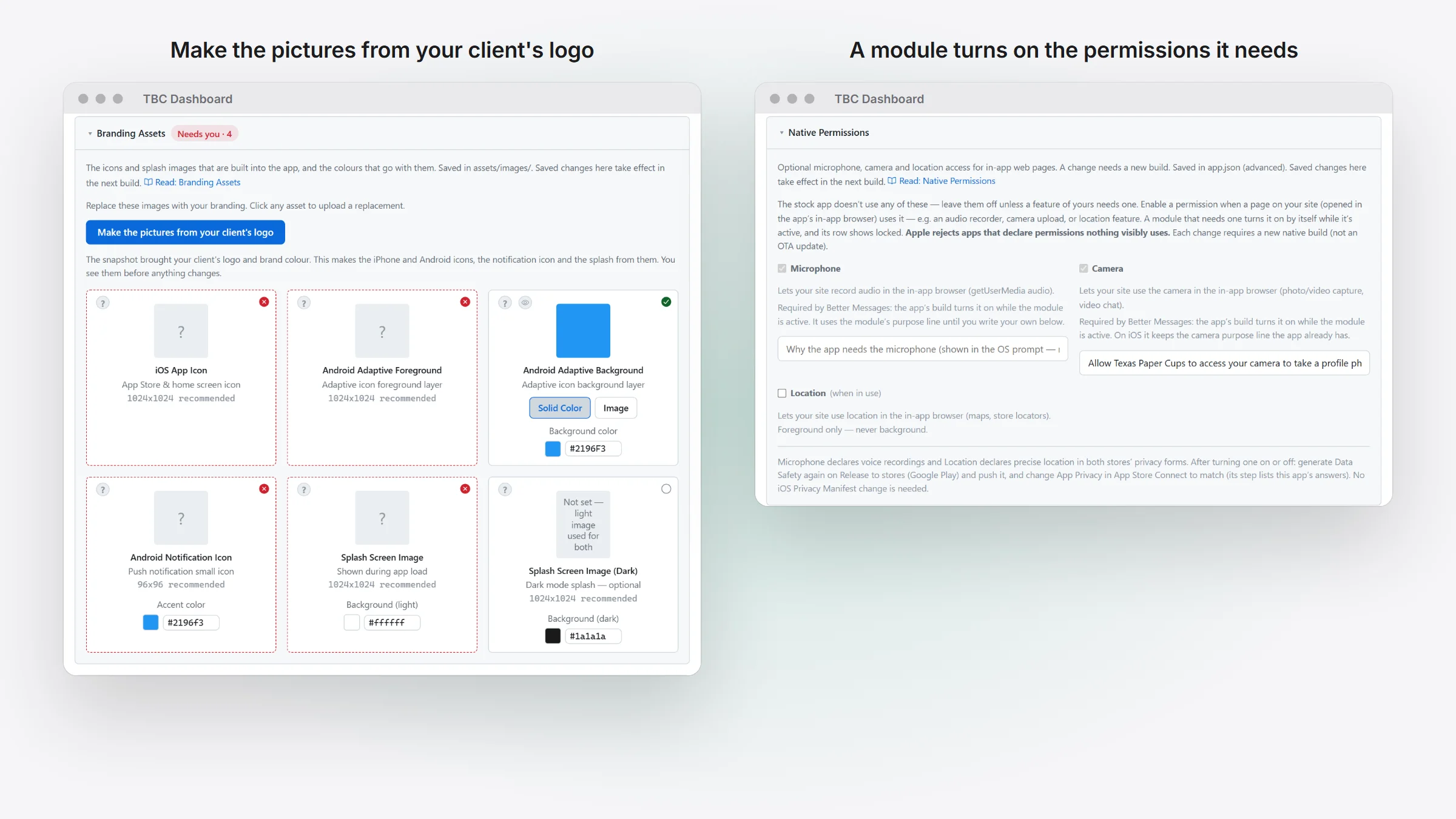
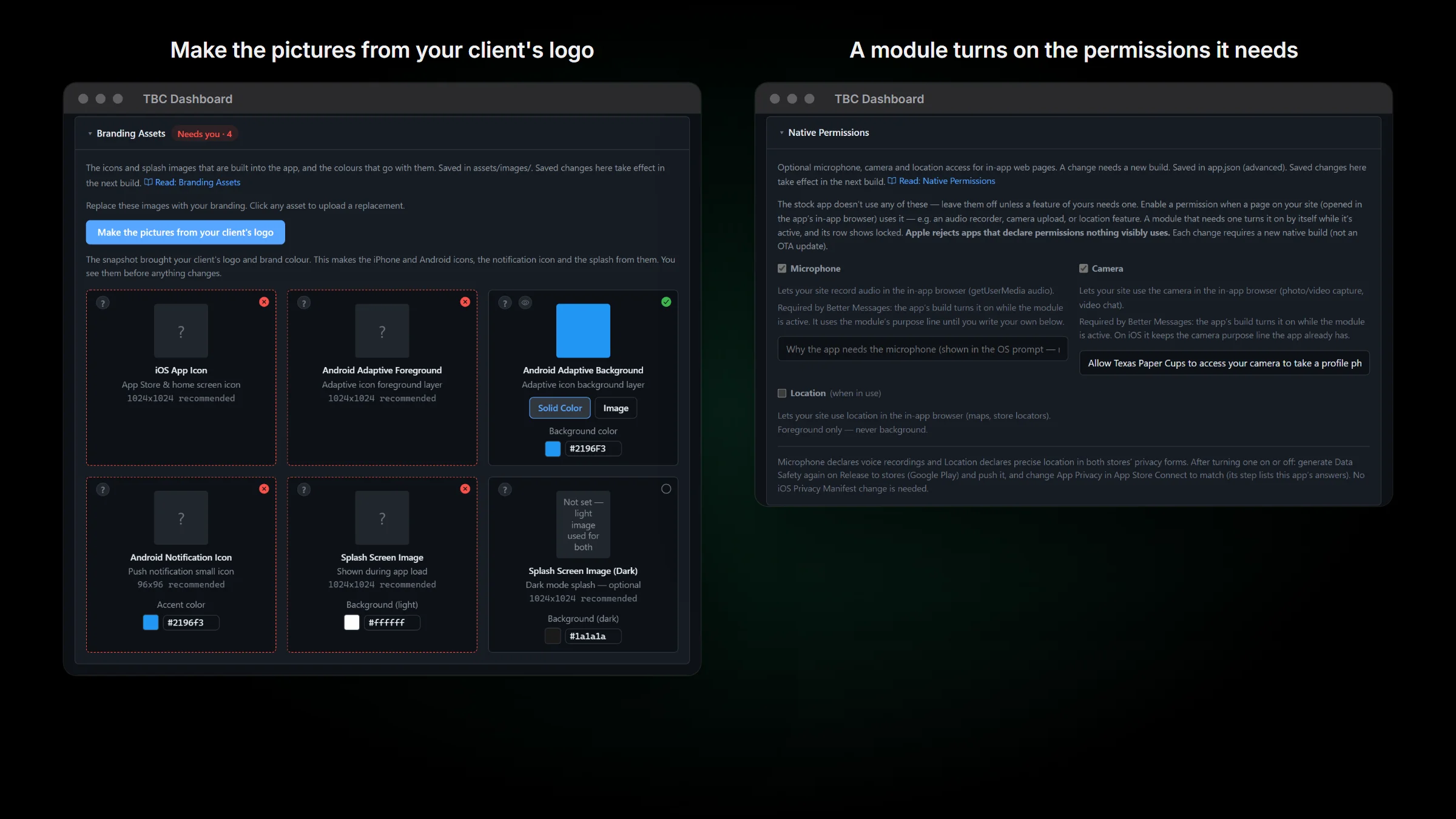
- One logo makes your Managed client’s pictures. When a client’s Managed setup carries their logo, Branding Assets offers Make the pictures from your client’s logo. It makes the iPhone icon, the Android icons and the splash screen in one go.
- Modules can ask for the phone permissions they need. A module can turn on the microphone, camera or location for your build while it’s active. Better Messages uses this for voice messages and calls. Set up › Native Permissions shows which module asked, and the dashboard tells you when this means a new store build.
- Apple’s agreement gets its own card. When Apple needs its updated agreement accepted, the dashboard says so once, with Apple’s own words, and holds the App Store steps until it’s done.
- Errors say what Apple, Google, Expo or WordPress actually said, so an empty list now tells you why it’s empty.
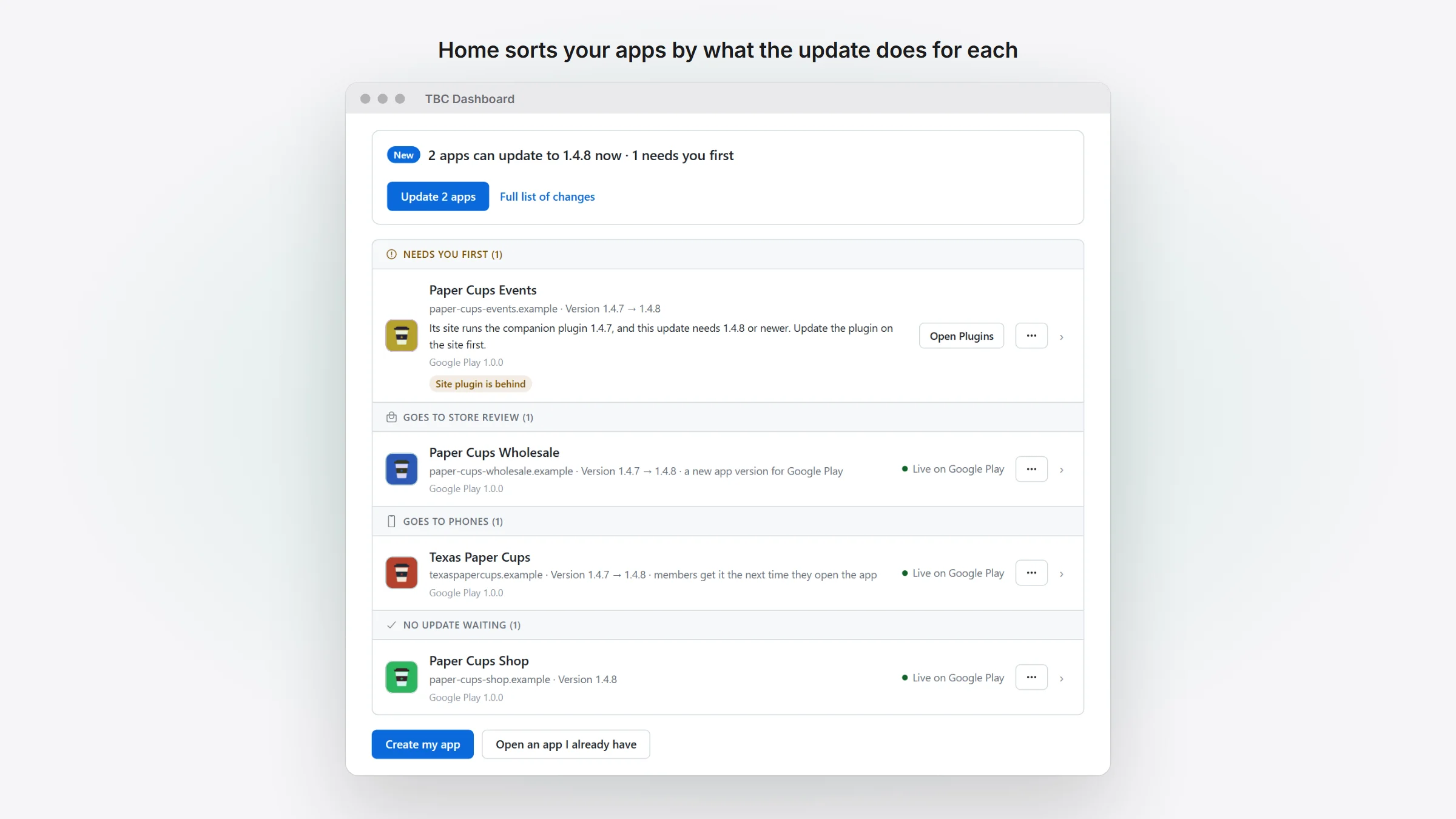
- Home’s “Up to date” group is now “No update waiting”, which is what it counts.
- Home’s update percent now counts the steps done, the one-icon maker handles gradient and see-through logos, Play’s government apps step waits for your tick, a restart for a core update waits for other apps’ builds and live updates to finish, and Home checks your site’s plugin version live.
Before you update
- It needs a new app build and a store update.
- Photo descriptions and marking one notification as read need Fluent Community 2.15. Spots left and the countdown need FluentEvent 1.1.0.
- Update all your Two Birds Code plugins. This update installs the usual way, and the signature checks start with the next one.
- Open Config › Privacy & Terms. If your Terms page says Out of date, press Regenerate. If you use your own page, press Get the wording and copy in the Child safety section.