

Meet TBC Dashboard: your app, from setup to the stores (Core 1.4.1)



 ·
28 min read
Core 1.4.1 · TBC Dashboard
Meet TBC Dashboard: your app, from setup to the stores.
TBC Dashboard arrived in 1.4.0, and 1.4.1 finishes its design, so this post is the full tour. It’s a desktop app that takes you from a license key to your own app in the App Store and Google Play, then keeps that app up to date.
It’s for Dev Bundle owners, who build and publish their own app. On a Managed plan you won’t need it: we use it to build and update your app for you.
A desktop app, with nothing to install first
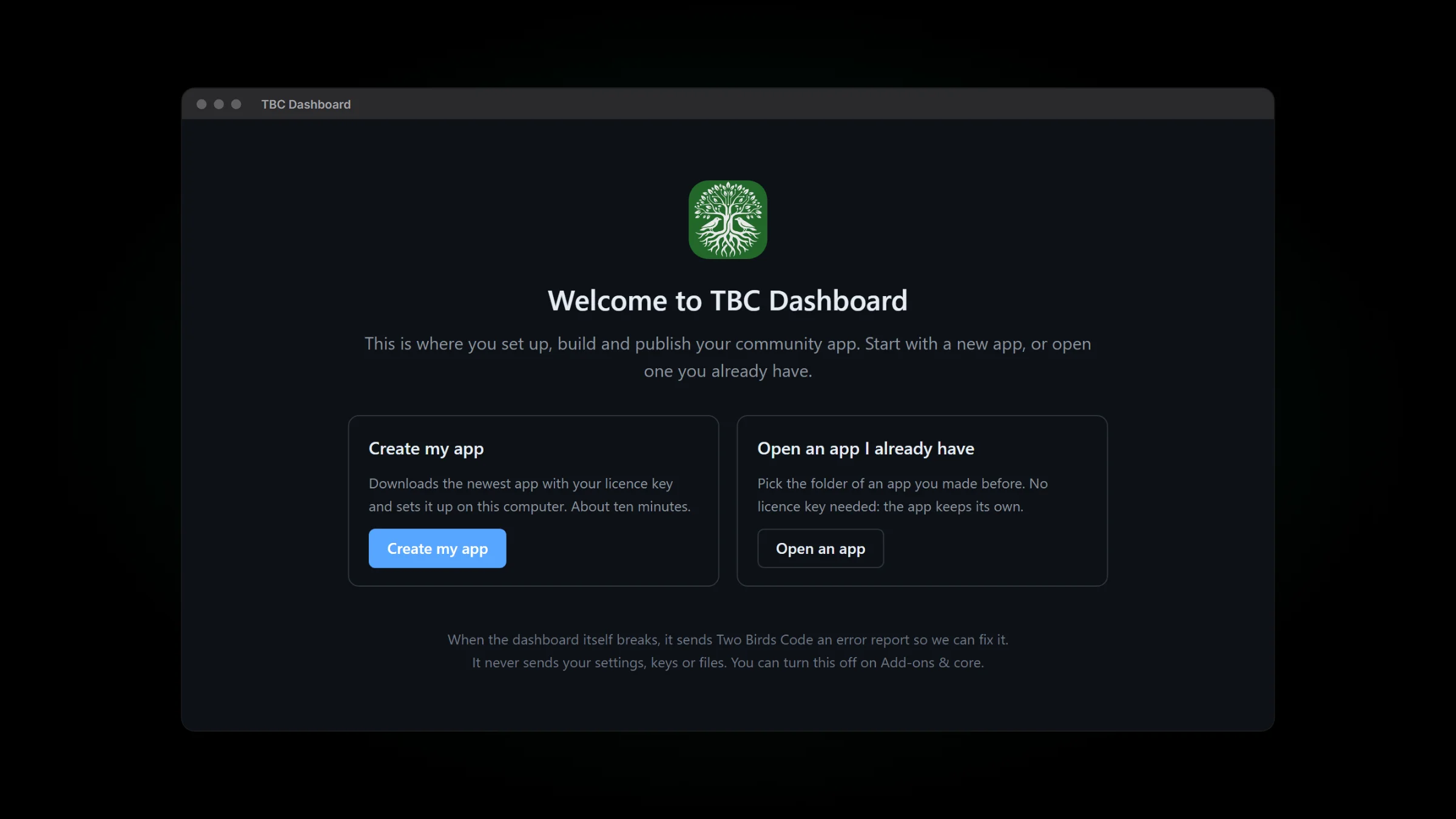
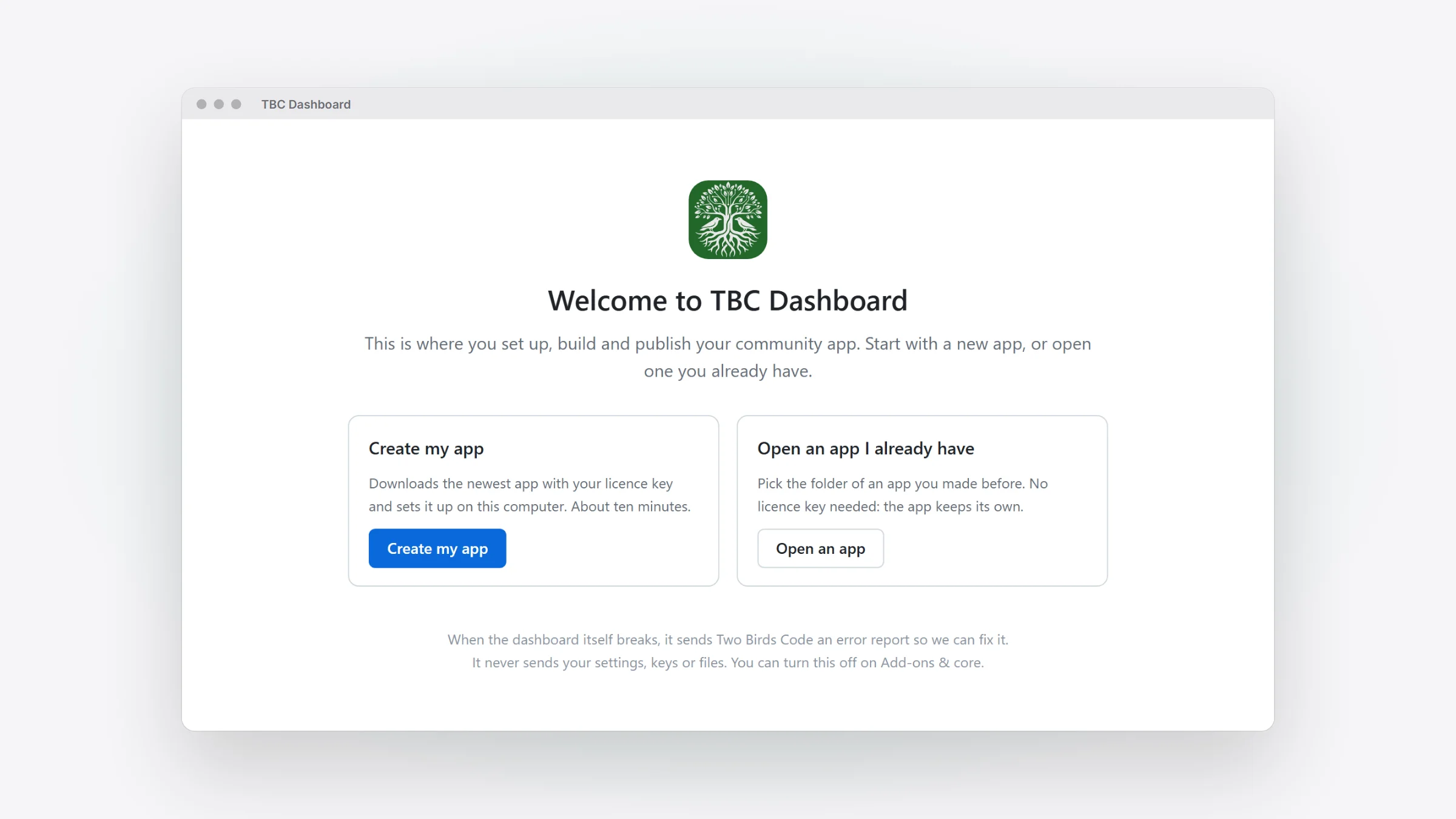
Download TBC Dashboard from your account on twobirdscode.com, for Windows or a Mac (Apple silicon or Intel), and open it like any other program. It brings its own copy of Node.js, so there’s nothing to set up in a terminal. New versions download in the background, and it asks before it restarts. From 1.4.1 its version number matches the core’s.
- Create my app takes your license key and your community’s web address, downloads the current core and sets up the app folder.
- Open an app I already have adds an app you made before, with no key to type.
- One TBC Dashboard runs every app on the computer.
Until the Windows installer is signed, Windows may say "Windows protected your PC". Click More info, then Run anyway. The signed installer will come as a TBC Dashboard update.
Nine steps to your own app in both stores
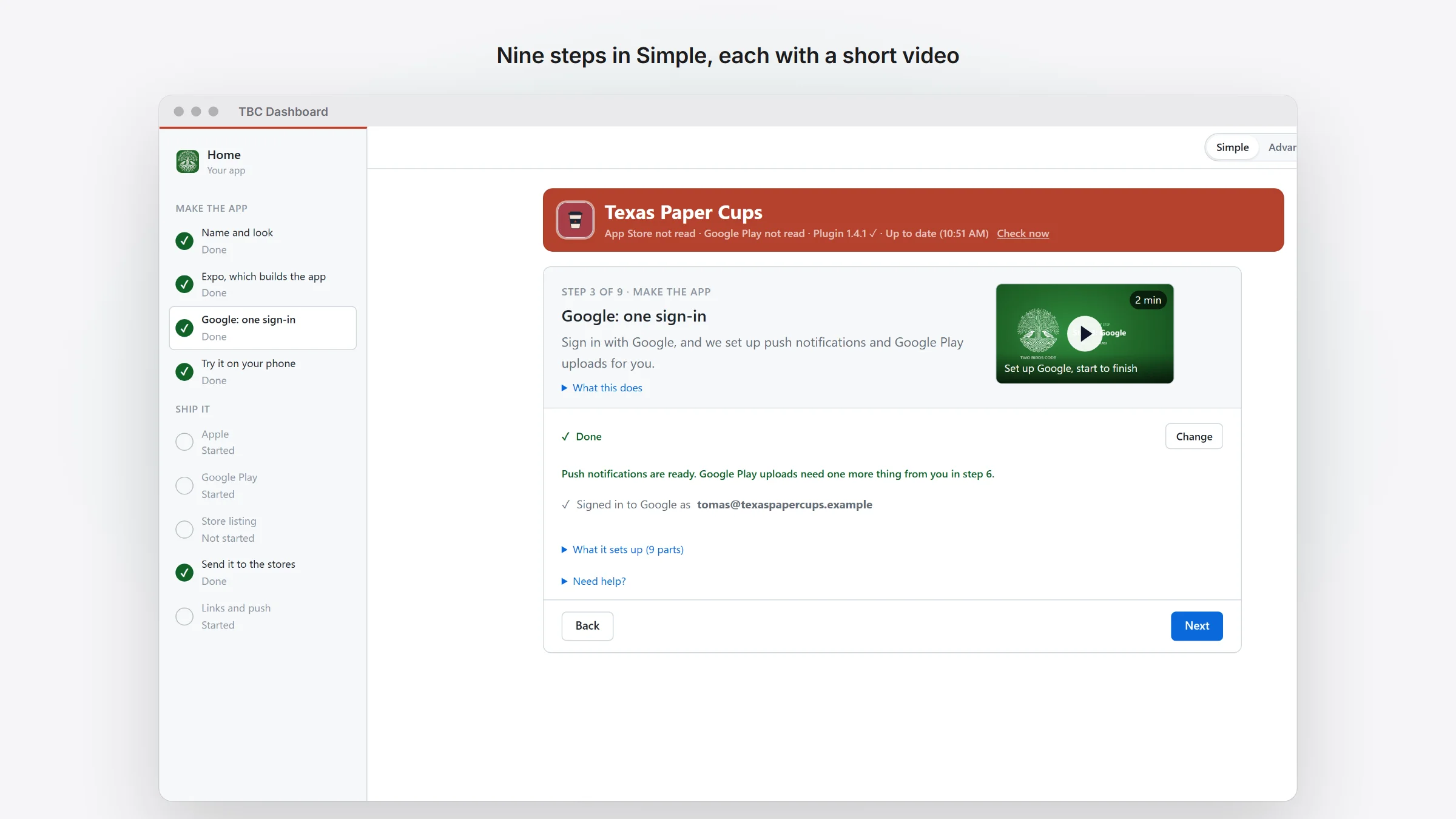
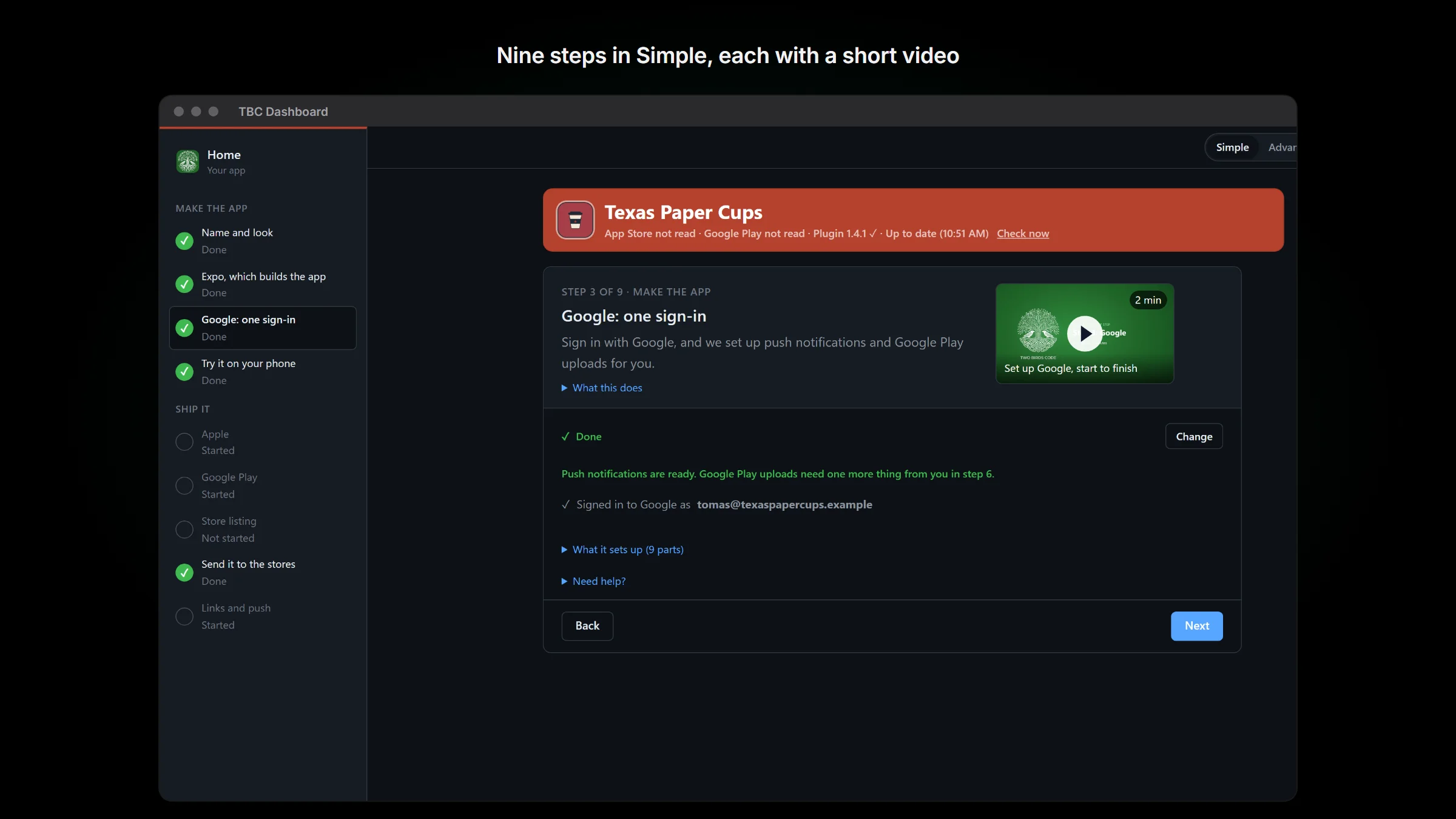
TBC Dashboard opens in Simple. Until your app has shipped, Home is nine steps in two parts. Make the app: name and look, Expo, Google, and trying it on your phone. Ship it: Apple, Google Play, the store listing, sending it to the stores, then links and push. Each step does its work right there, and says what it’s waiting for.
- Step 1 makes every app picture from one icon: the iPhone and Android icons, the notification icon and the splash screen. You see them all before anything changes.
- Step 3 is one Google sign-in. If your computer doesn’t have Google’s tool, the step installs it, then sets up push and Play uploads in a new project named after your app.
- Step 5 sets up iPhone signing with one button. No terminal.
- Step 7 is one store listing form for both stores, and Fill in from my site brings the review login over from WordPress.
- Step 9 fills in your site’s Deep Linking settings for you to check and save, then opens Test Push so you can send one to a member you pick.
A video for every click outside the dashboard
Some of setup happens on Apple’s, Google’s and Expo’s websites. Each of those steps has a Watch link to a short video of the clicks, once its video is up.
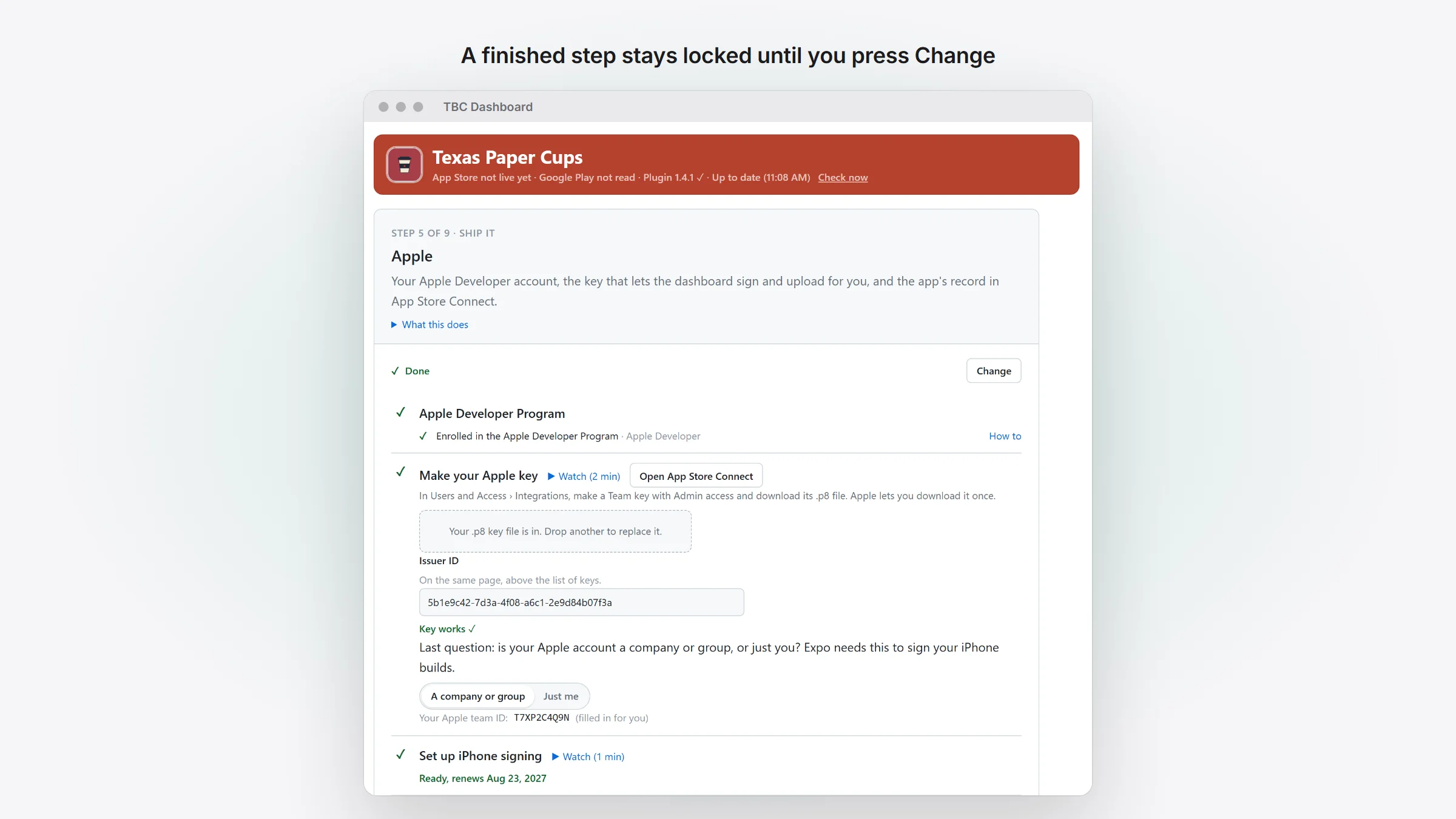
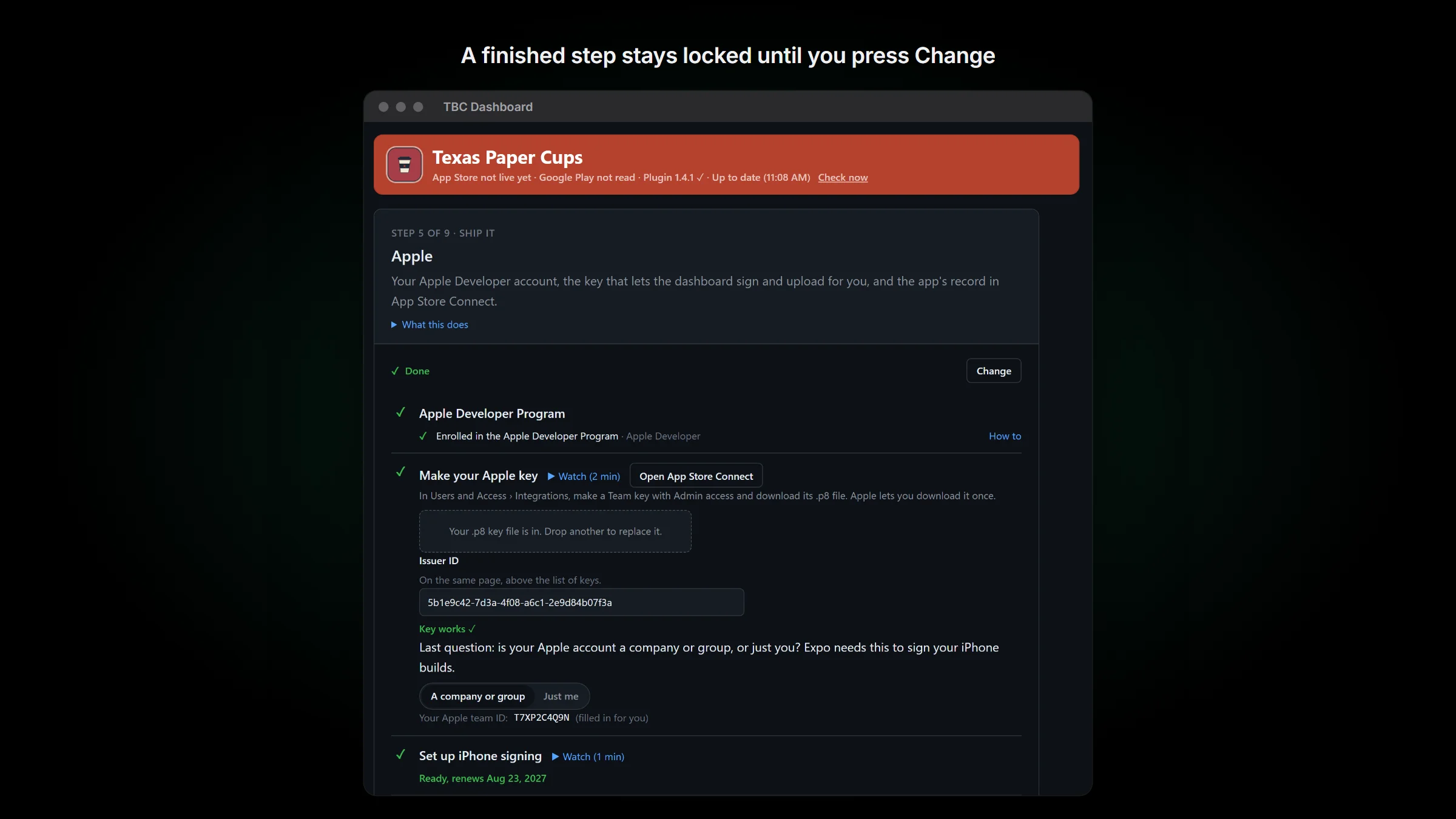
When you finish a step, it folds into one card that shows what you filled in, locked so nothing changes by accident. Press Change to edit it. A step with some parts done reads Started.
One Home for every app, and one press to update
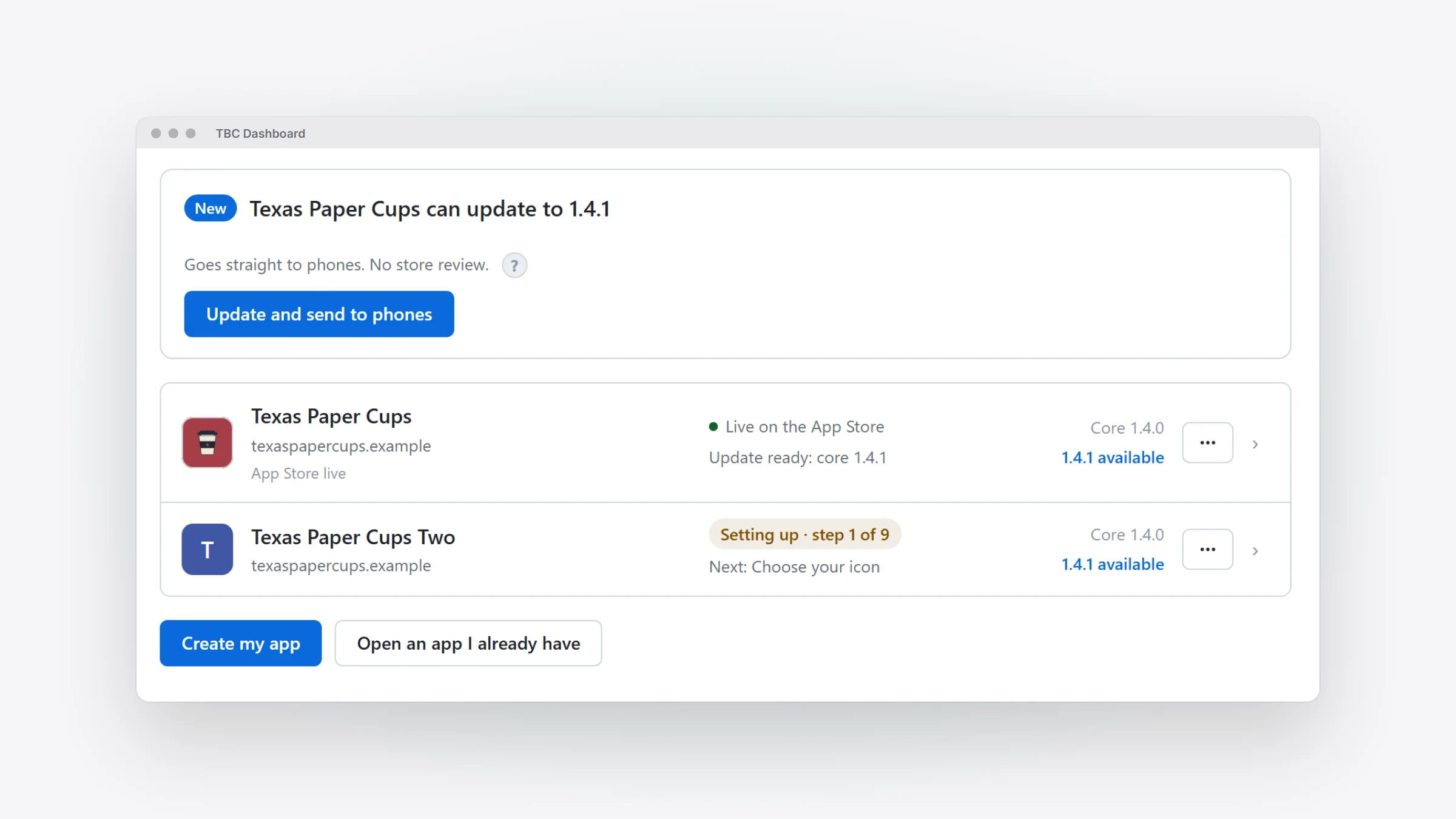
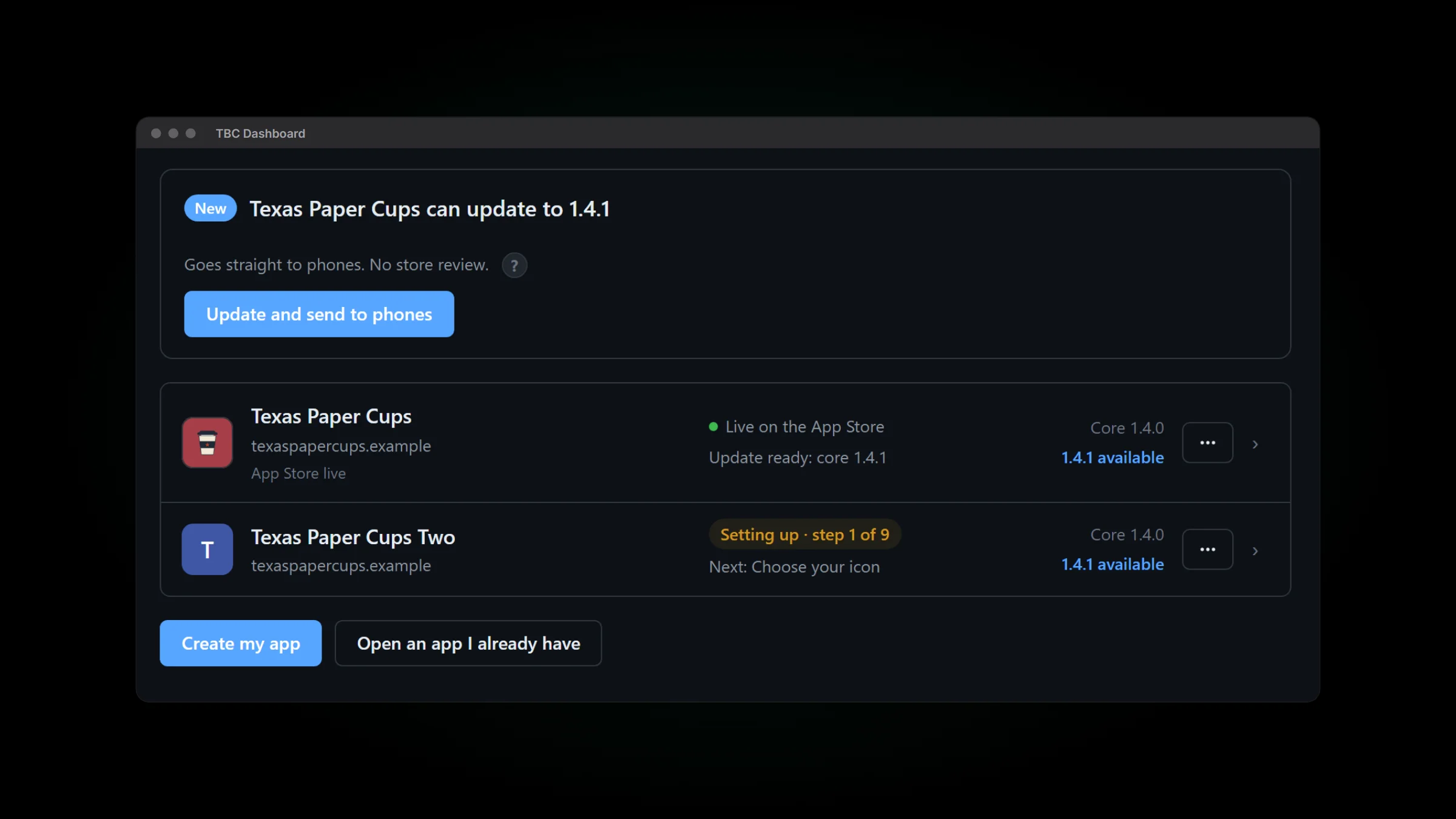
Once your app is live, Home is where you look after it. Each app has a row with the version live on each store, its site plugin and where its update stands.
When a core or add-on update is ready, one card says where it goes for that app: straight to members’ phones, or out as new store versions. One press does the whole job: update, build, send for review. Before you press, it tells you how many Expo builds that uses and how many you have left this month.
- Close the box and the job keeps going. Home shows one line with Show, and In review once it’s sent.
- Send for review goes to both stores, with What’s New in each language your listing has.
- Every Google Play upload goes in as a draft and stays one until you release it in Play Console.
- An app’s header shows, in one line, the version on each store, the site plugin and whether an update is waiting.
A check before the reviewer opens your app
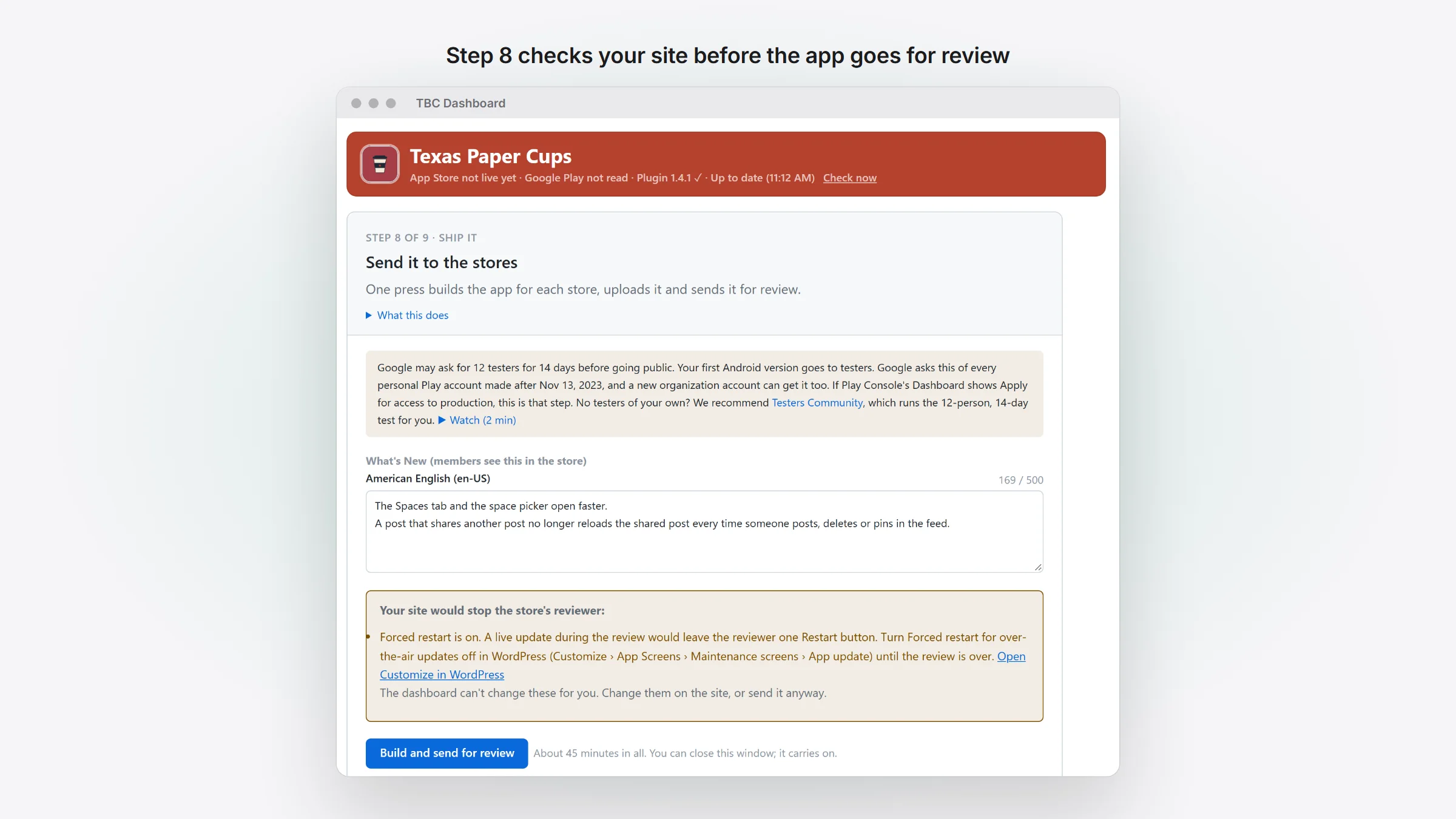
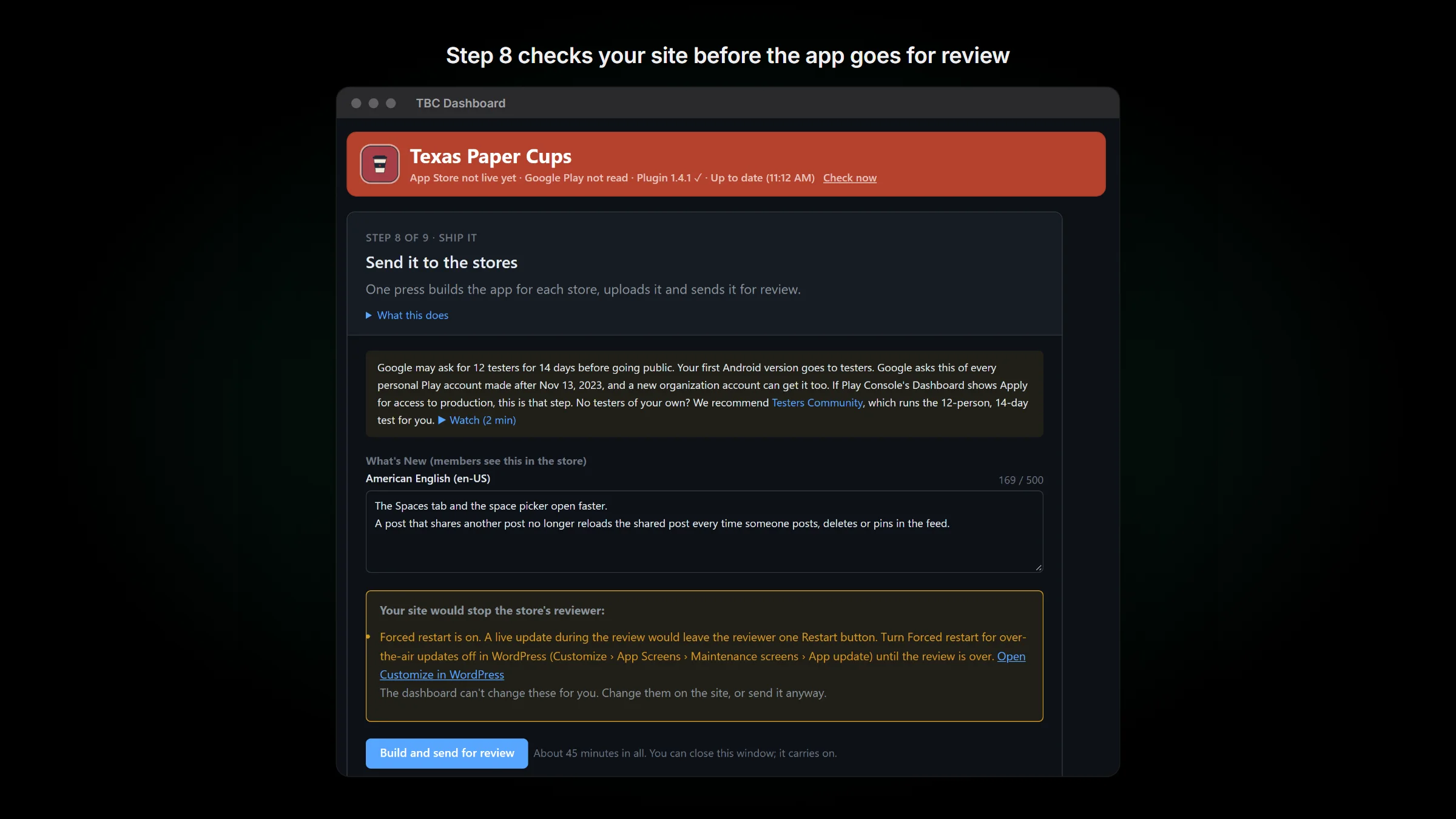
Apple’s and Google’s reviewers open your app the way a member does, so a few settings on your site can stop them before they sign in. Before anything goes for review, the dashboard reads your site’s App update and maintenance settings and warns you when:
- Forced restart is on
- Who can skip isn’t set to Everyone while a minimum version is set
- the minimum version is higher than the version you’re sending
- the maintenance screen is on
Each warning links to the setting in WordPress. The dashboard can’t change your site for you, so if you press with a warning showing, it asks "Send it anyway?" first.
While Apple has a build in review, live updates that would reach iPhones wait until Apple answers. Updates to Android phones still go.
Advanced, when you want every page
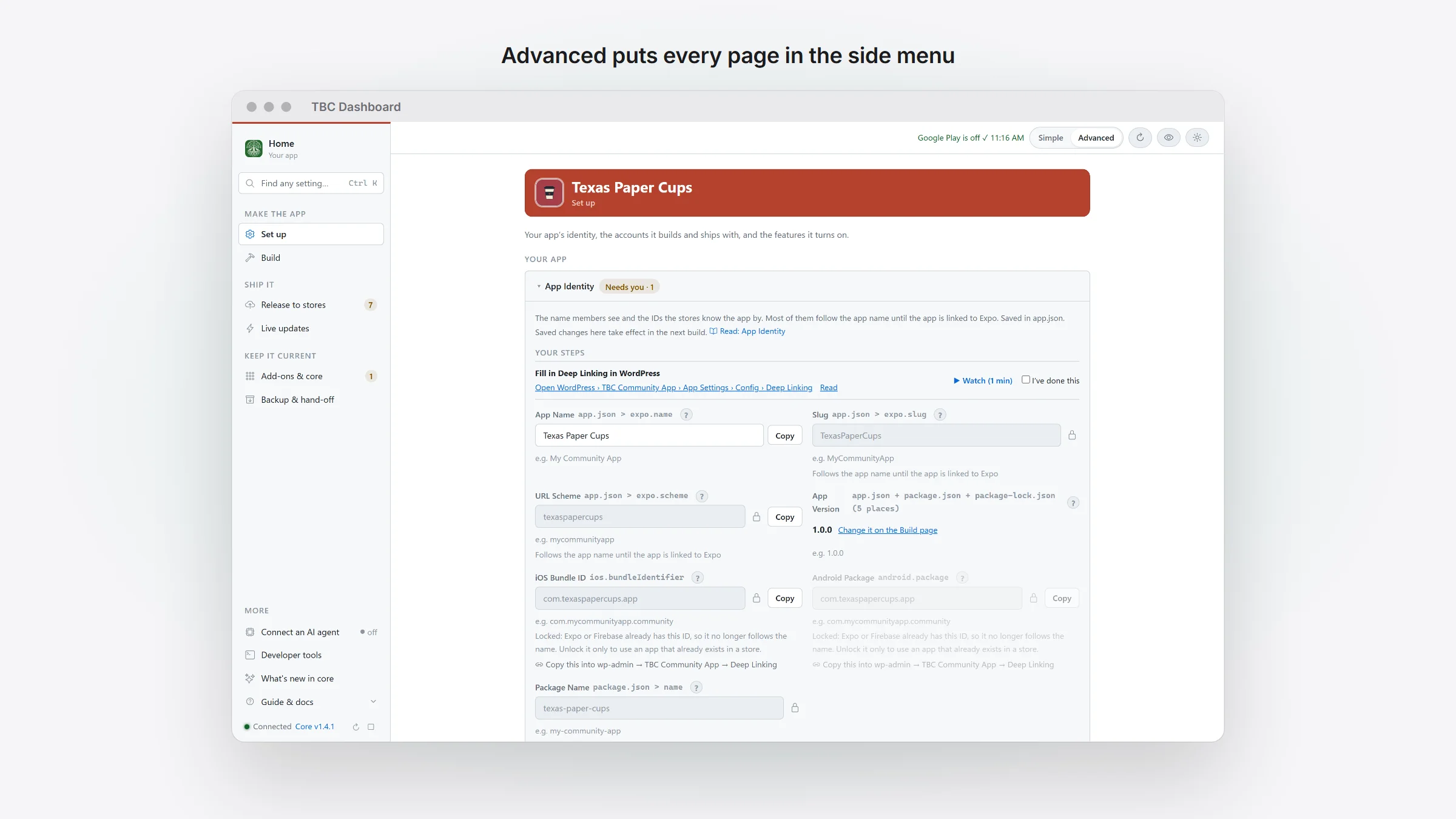
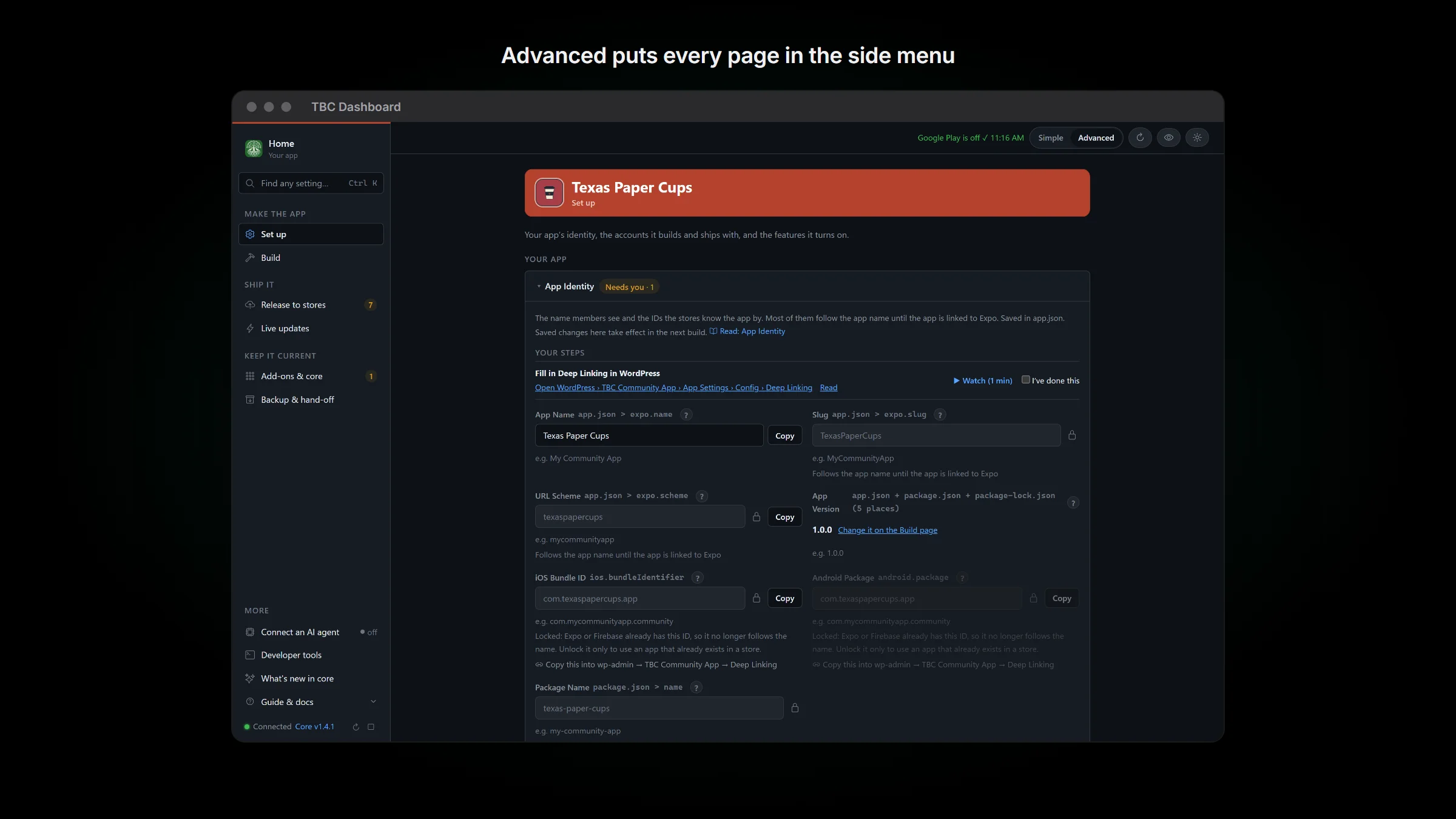
The Simple and Advanced switch in the top bar opens every page: Set up, Build, Release to stores, Live updates, Add-ons & core, and Backup & hand-off. Home adds a facts table to each app’s row and one bar of actions for the apps you tick. Ctrl K (⌘ K on a Mac) finds any page, setting or guide heading.
Connect an AI agent links Claude, Claude Code, Codex, Cursor or VS Code to the dashboard’s tools. An agent can take an update to your members the way Home does, and it shows you a preview and waits for your yes before each send.
Also in 1.4.1
For members:
- The Spaces tab and the space picker open faster.
- A post that shares another post no longer reloads the shared post every time someone posts, deletes or pins in the feed.
- A plan that opens several courses sends one push naming them all, instead of one push per course.
For admins:
- A member who pays in the app and was missing their plan’s tag no longer waits while FluentCRM runs your automations. The tag goes back just after.
- The privacy policy the plugin writes lists orders and a payment provider only when at least one Fluent Cart product is published.
- The Terms of Use the plugin writes has a Child safety section, in all four languages.
- If you use your own Terms page, Create a new terms page asks before it points the app at the plugin’s page.
- The Test Push box says what it takes: pick a member, or type a username or email.
If you build your own app:
- When the core is current but the store builds came from an older one, Home offers Build and Send for review. It used to read Up to date.
- An app that’s only on Google Play no longer plans an iPhone build.
- Paste your app’s Play Console address on the Google Play card, and Send for review opens your own app there.
- Data Safety lists address and purchase history only when your site sells through Fluent Cart.
Before you update
- From 1.4.0, it doesn’t need a new build. It can go out as an over-the-air update. From an older core, it needs a new build and a store update, as 1.4.0 did.
- If the Terms of Use card says your terms are out of date, press Regenerate terms page. The new page has the Child safety section that Google Play’s child safety step links to.
- Using your own Terms page? The card now asks you to make sure it covers Google Play’s Child Safety Standards policy, and links it.
- If Fluent Cart is on but you don’t sell anything, regenerate your privacy policy when its card says it’s out of date.