

Free plugin: User Switching for Fluent Community 1.0.1



 ·
23 min read
·
23 min read
Free plugin · User Switching 1.0.1
Sign in as any member.
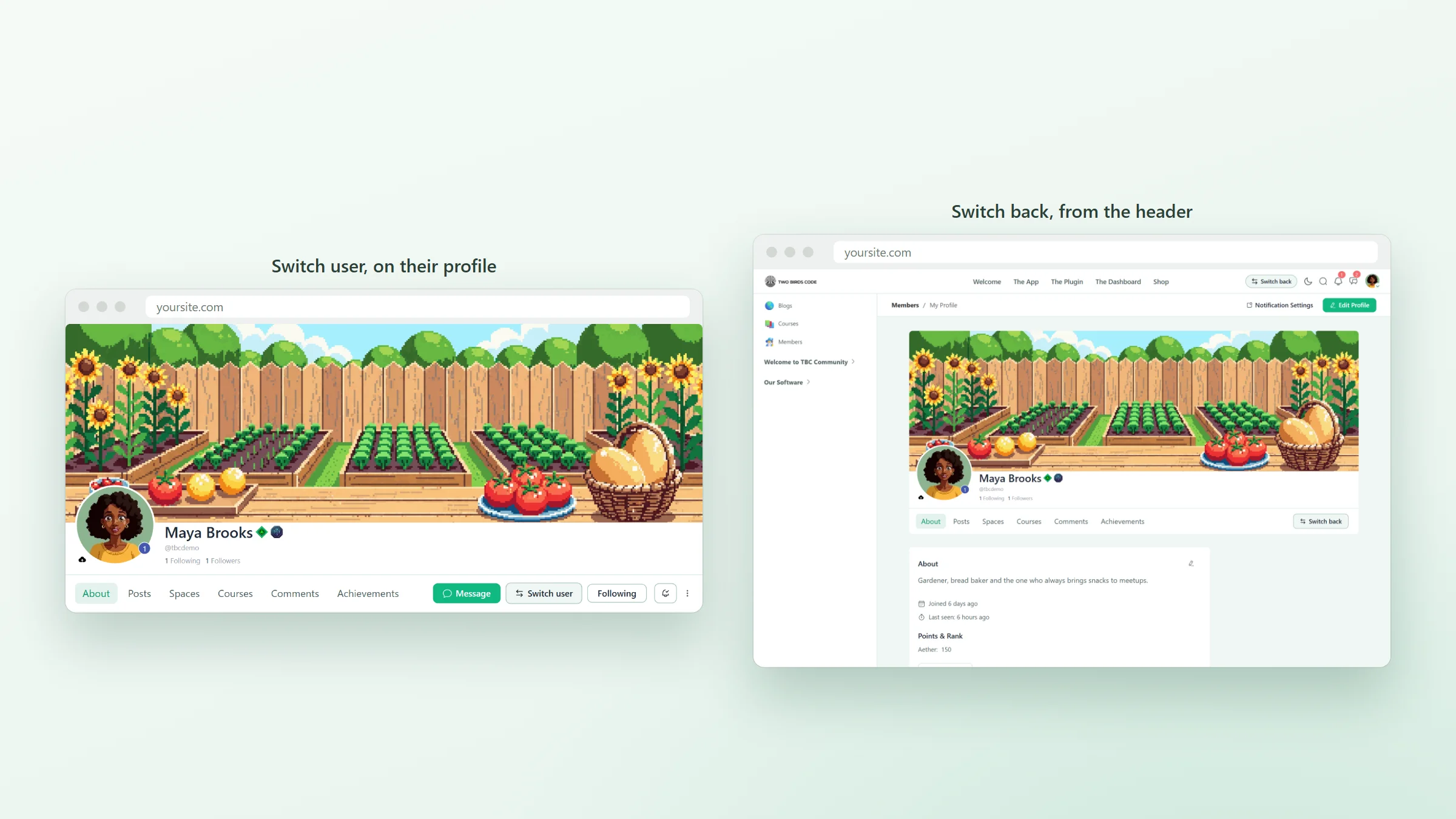
User Switching for Fluent Community is a free plugin for any Fluent Community site. It puts a Switch user button on member profiles and a Switch back button in the portal header, so you can see your community the way a member sees it and be back in your own account in one click.
The portal · two buttons
See exactly what a member sees.
The free User Switching plugin from WordPress.org lets an admin sign in as another user and back again. Its buttons live in WP Admin and the toolbar, and the Fluent Community portal hides the toolbar. This plugin puts them in the portal, where you are when you need them.
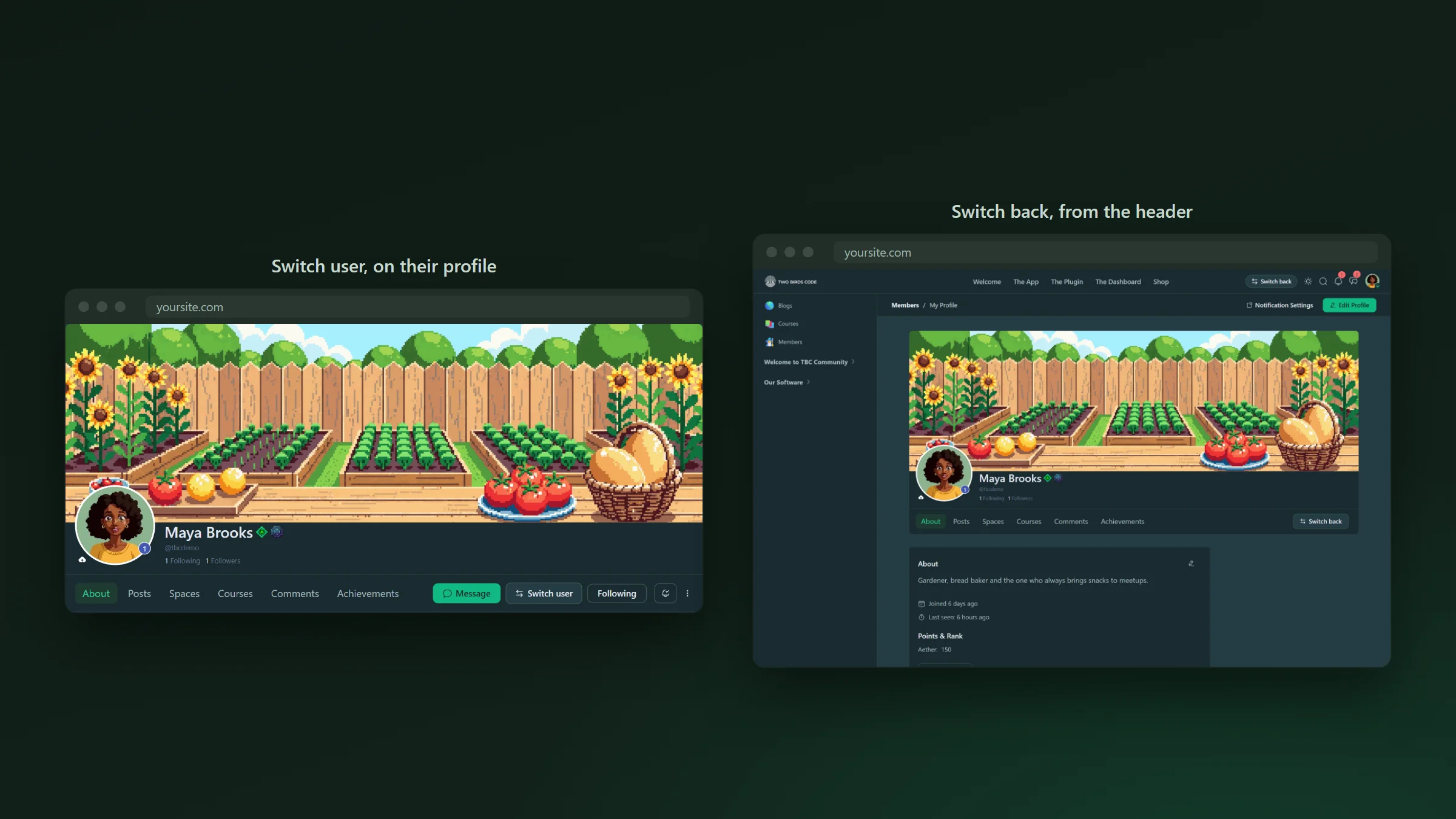
- Switch user sits with the buttons on a member’s profile. Click it and you land on the same profile, signed in as them.
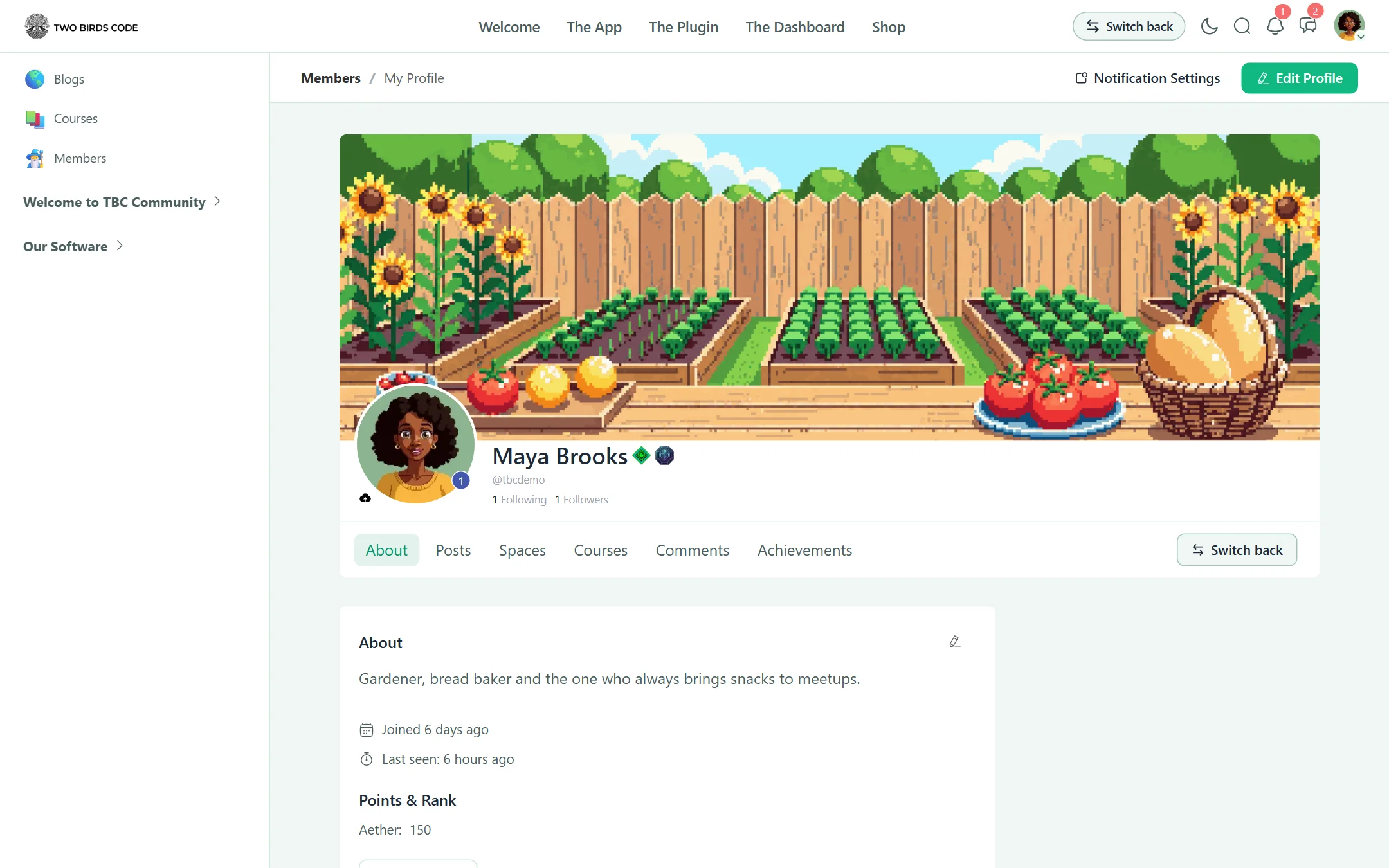
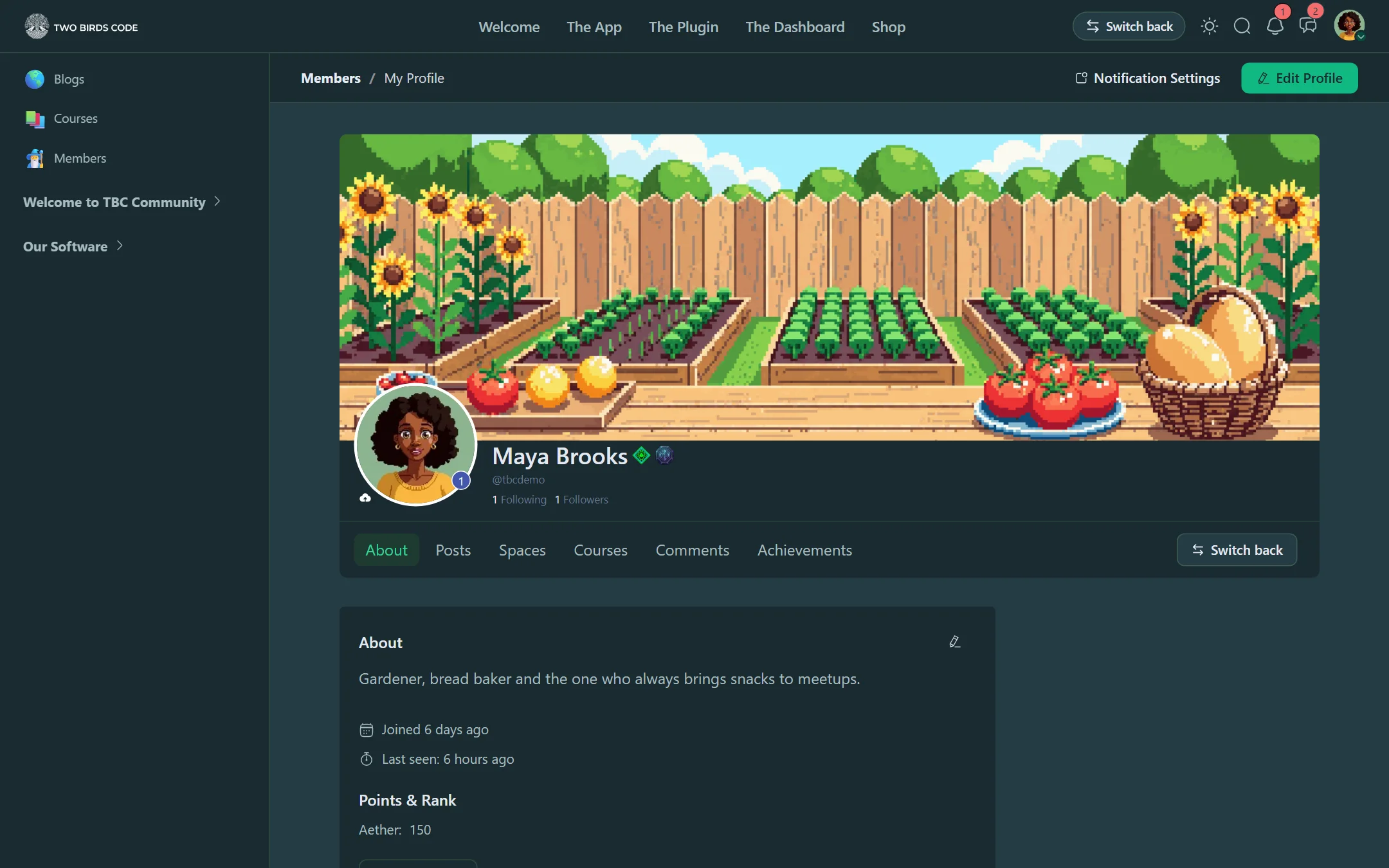
- Switch back sits in the portal header on every page while you are switched, and on every profile. It takes you back to your own account on the page you were on.
- Hover the header button to see whose account it returns you to. On a phone it shrinks to an icon.
- Both buttons follow the portal’s light and dark mode.
It is the quickest way to check what a new member sees on day one, why someone can’t find a space, or whether a course is locked for the right people.
One member, then the next · switch, look, switch back
The same space through two members’ eyes.
Switch to Maya and open a space, switch back, switch to Leo and open it again. Each time the portal is theirs: their picture in the header, their name in the post box, their reactions on the posts and their own notification count.
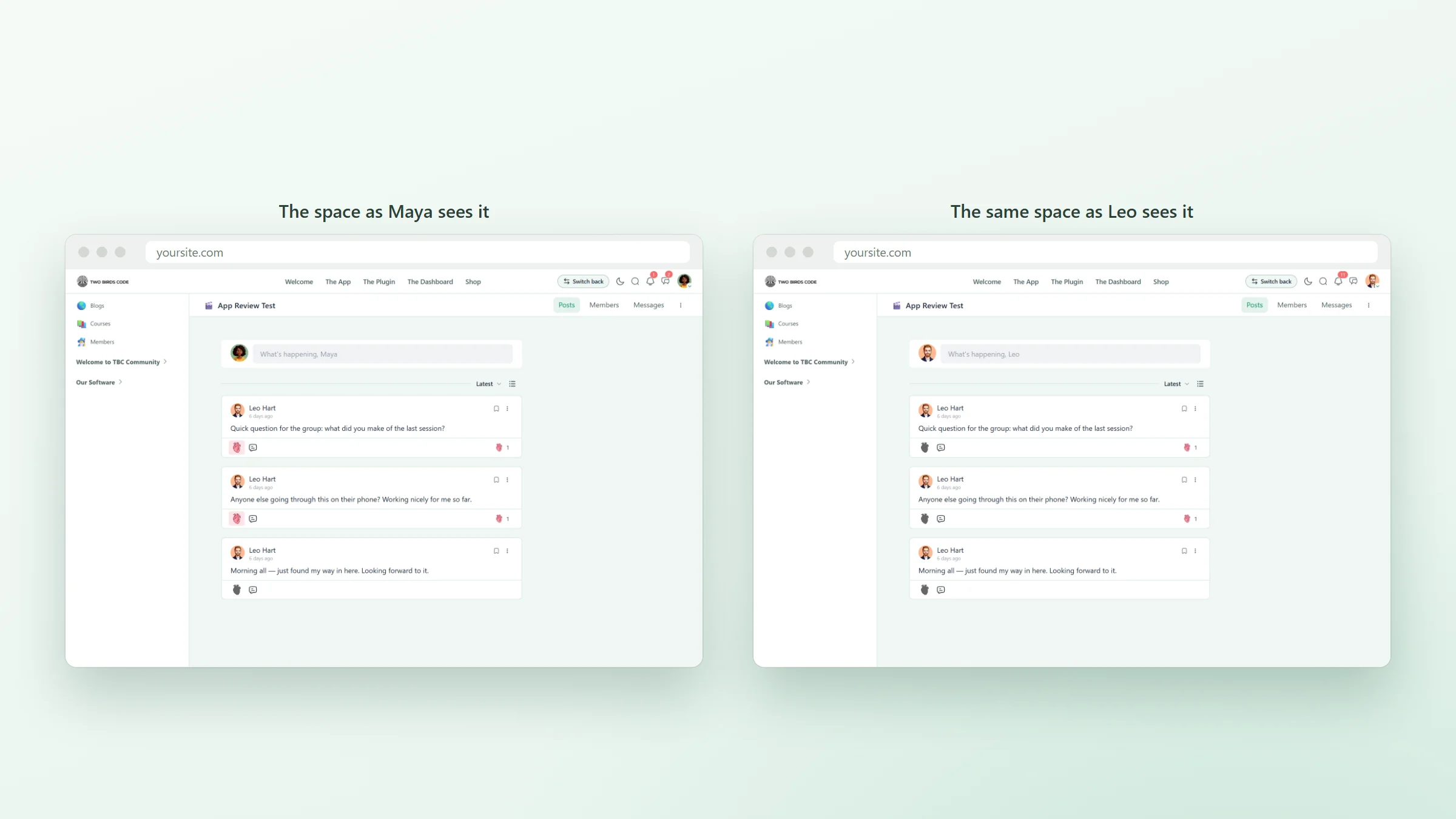
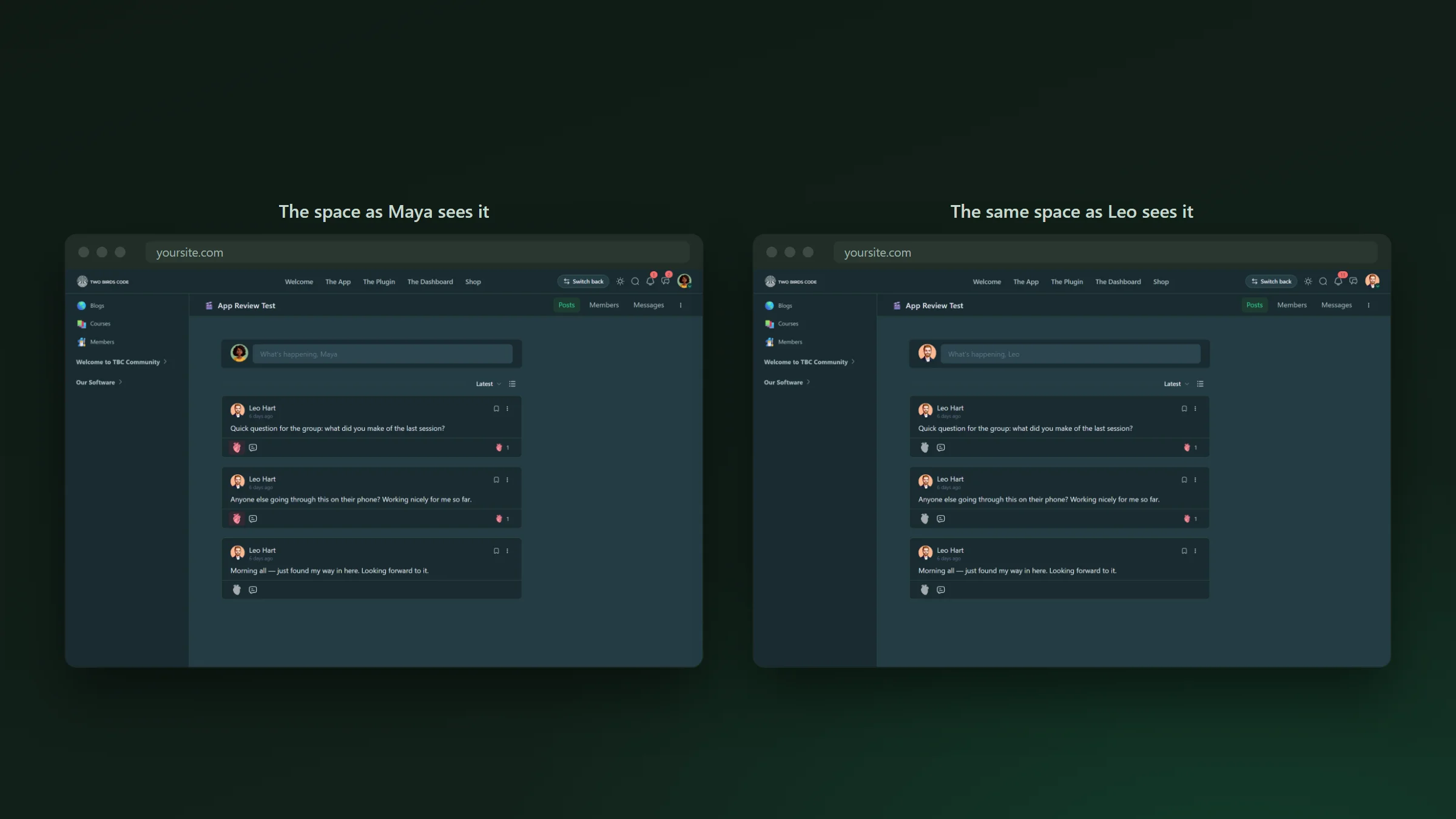
- See which spaces, courses and posts a member can reach, and which they can’t.
- Check a post, a reaction or a notification from the member’s side.
- Switch back takes you to your own account on the page you were on, so the next member is one profile away.
WP Admin · nothing to set up
User Switching makes every decision.
This plugin only places the buttons. The permission checks, the sign-in cookies and the record of who you really are all stay in User Switching, so the rules are the same as in WP Admin.
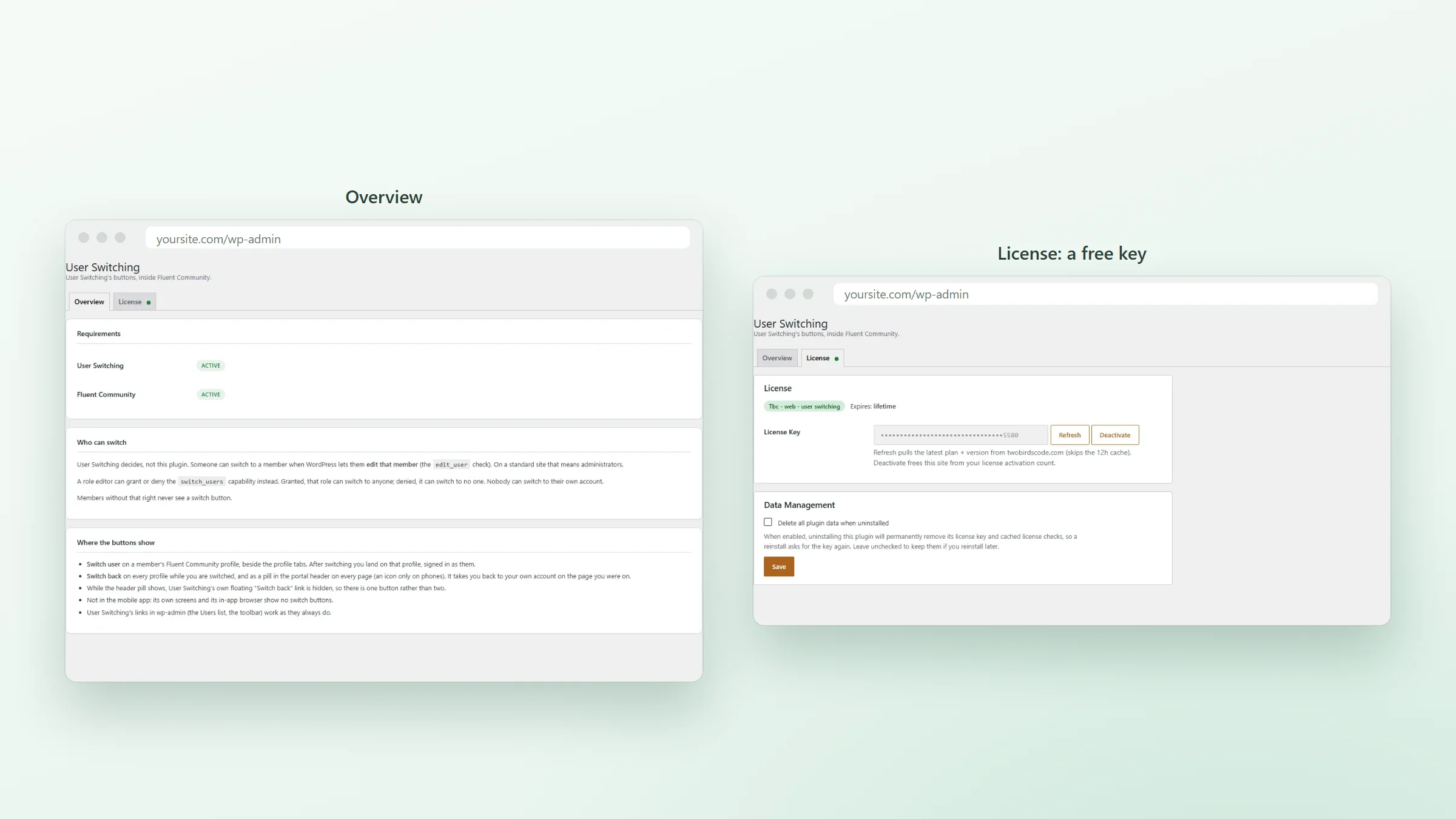
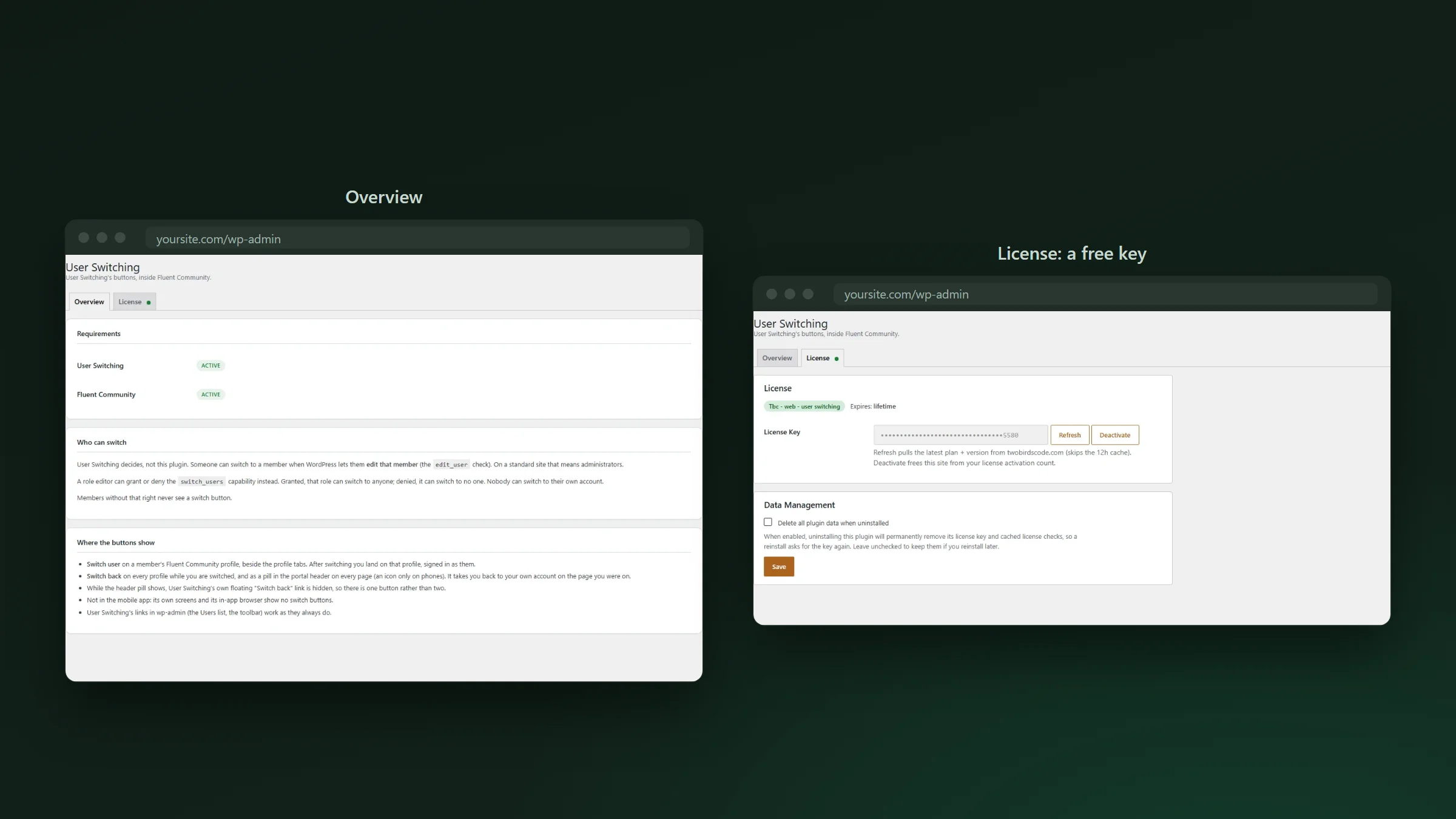
- Someone can switch to a member when WordPress lets them edit that member. On a standard site that means administrators.
- A role editor plugin can grant or deny the
switch_userscapability for a role. Nobody can switch to their own account. - Members without the right never see a button.
- The Overview tab shows whether User Switching and Fluent Community are active, with an install or activate button when User Switching is missing.
- The License tab takes the free key from checkout. The key turns the buttons on and brings updates and the changelog into Dashboard › Updates.
It works on sites installed in a subfolder, and when the header button shows, User Switching’s own floating Switch back link is hidden, so there is one button, not two.
What you need · two free plugins
Fluent Community and User Switching. That’s all.
- Fluent Community, free or Pro.
- User Switching, free from WordPress.org. The plugin offers to install it for you.
If your community also runs our TBC Community App, nothing changes there: the app shows no switch buttons. Switching accounts is a job for the website.
User Switching 1.0.1 · before you install
Two steps.
- Install and activate User Switching from WordPress.org first, or use the button on the plugin’s Overview tab.
- Get the free key at checkout and activate it on the License tab. The buttons show once the key is active.