
TBC App/Web - Banner Rotation

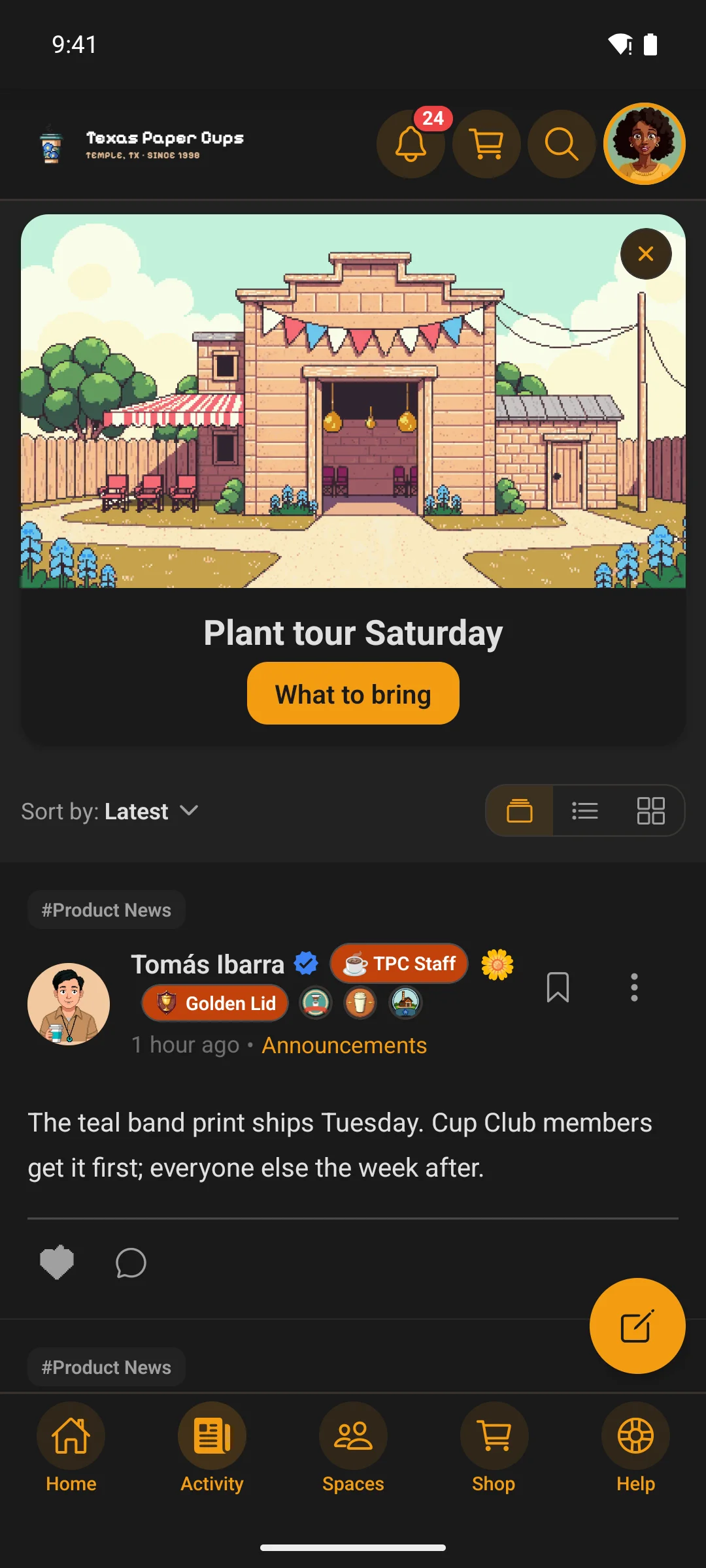
Turn Fluent Community's single welcome banner into a full rotating banner system โ€” multiple banners with images or videos, scheduling, audience targeting, and one-click lock. Shows in your app and on the web, with no app update needed.

$29.00
Buy Now

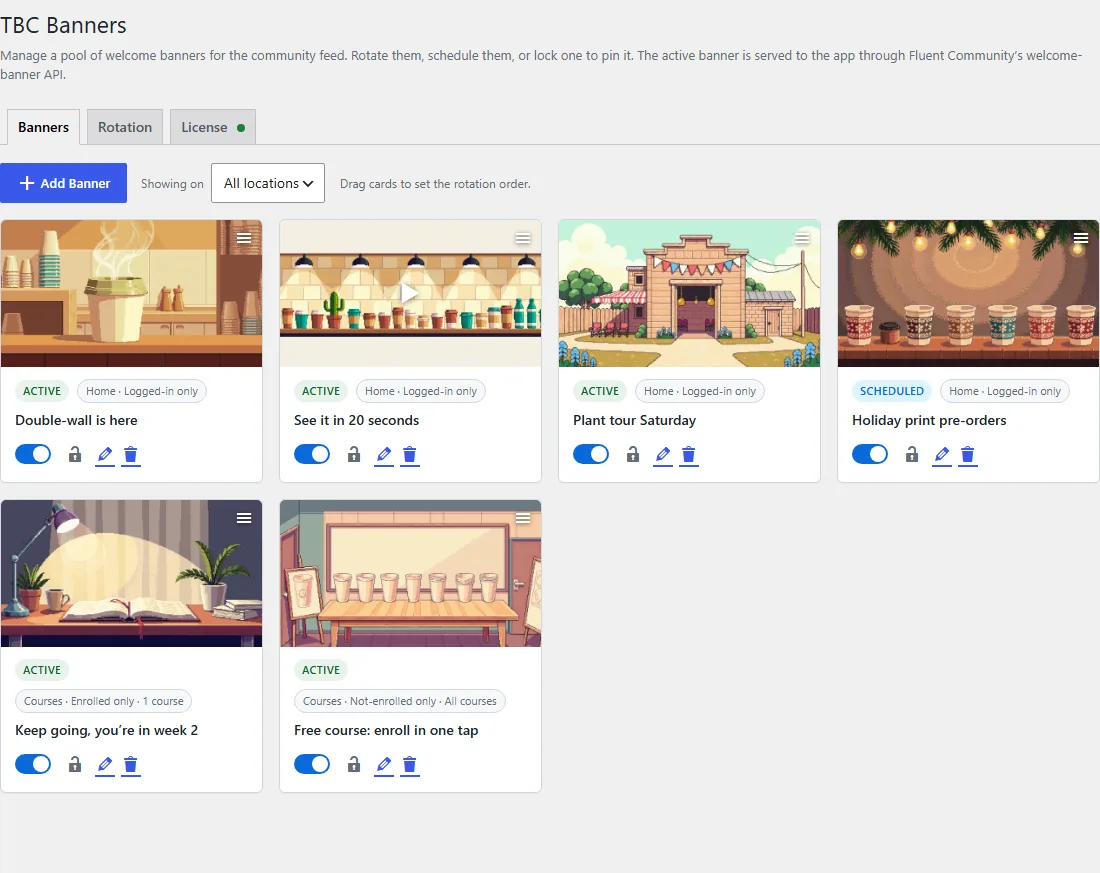
One welcome banner is never enough. Fluent Community gives you a single welcome banner for members and one for visitors. TBC Banners turns that into a managed pool you can rotate, schedule, and pin โ€” all from a clean, modern screen in your WordPress admin.

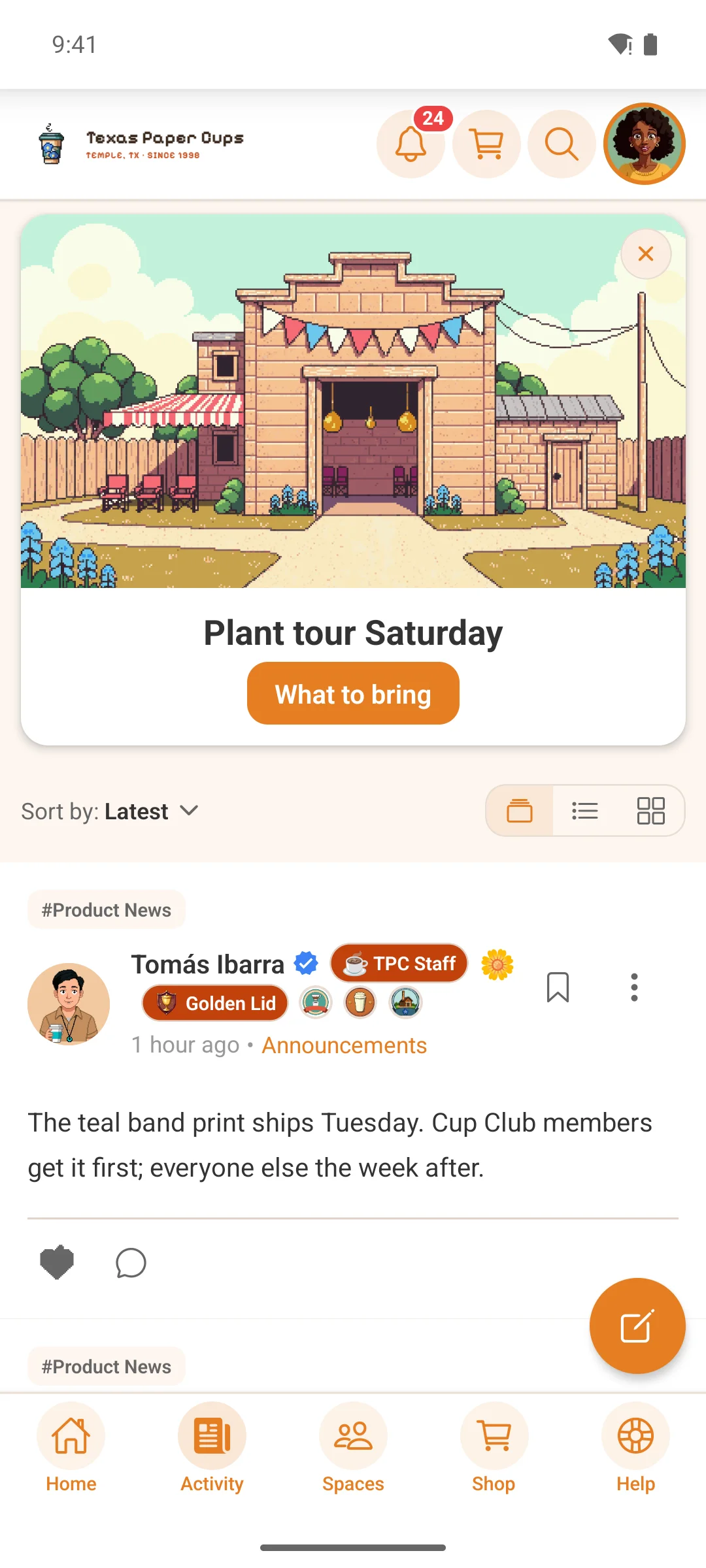
The active banner is served straight into Fluent Community’s own welcome-banner feed, so it appears on your community website โ€” and in the TBC Community App if you use it โ€” automatically, with no app update, no rebuild, no code.

What you can do

  • Keep a pool of banners โ€” as many as you like, each with its own image or video.
  • Image or video โ€” pick an image from your media library, or paste a YouTube / Vimeo link.
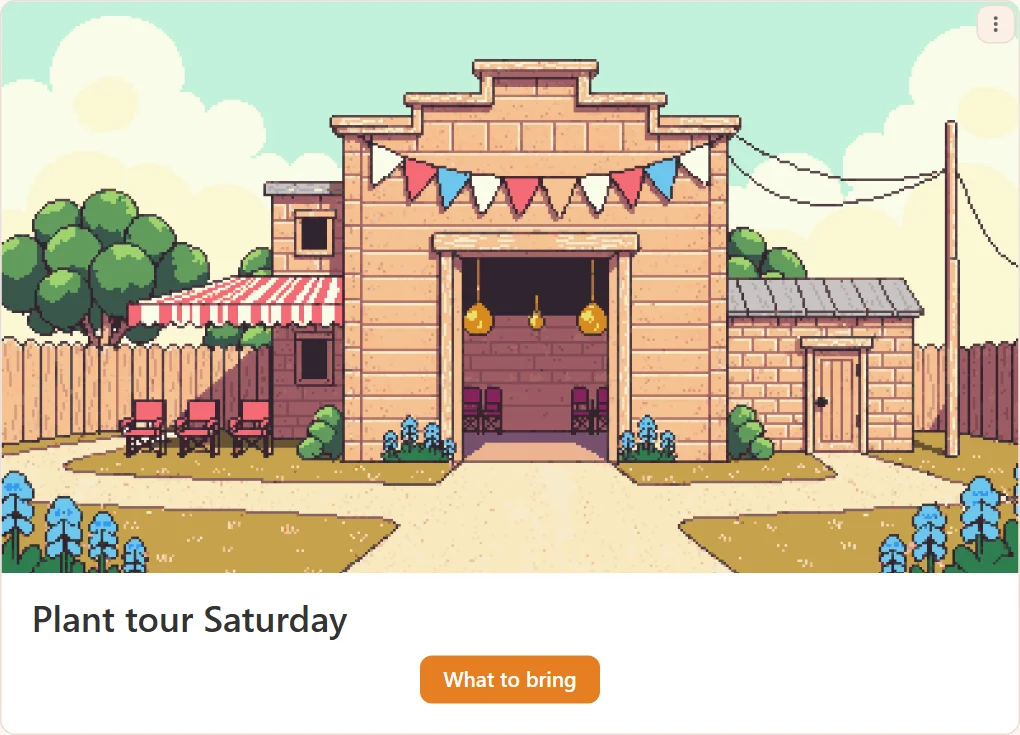
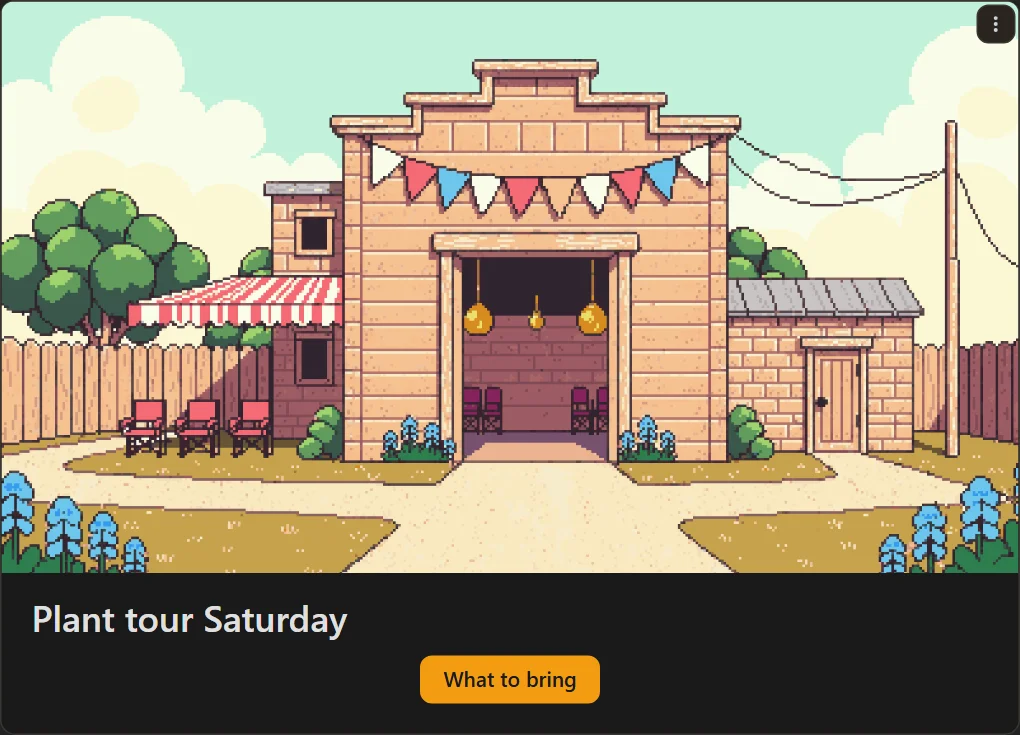
  • Rich content โ€” title, description (with formatting), and up to three call-to-action buttons.
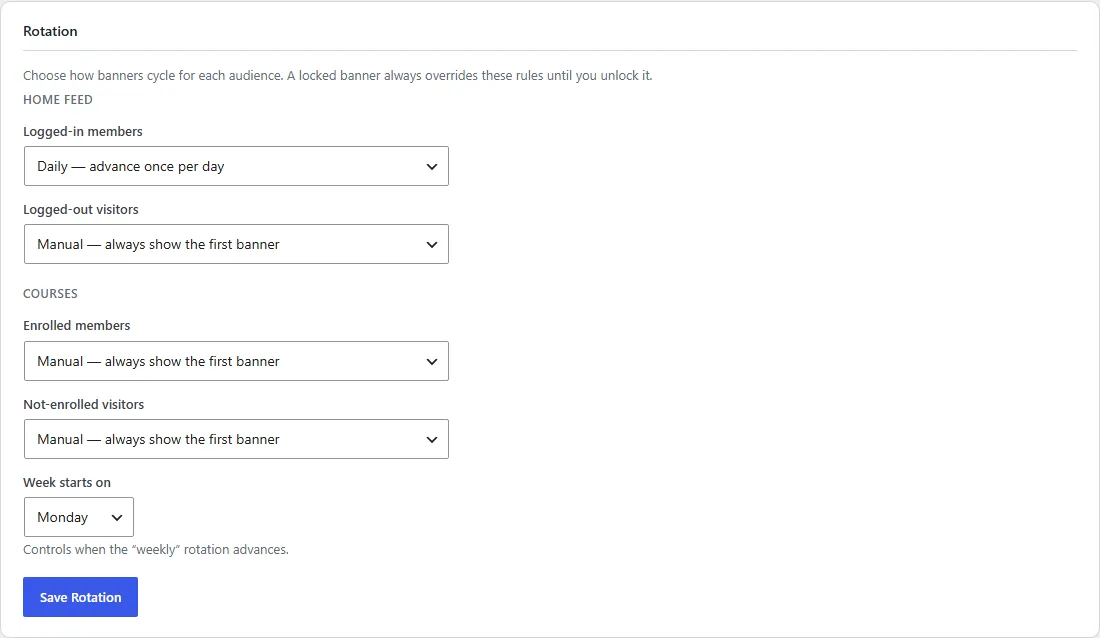
  • Audience targeting โ€” show a banner to everyone, to logged-in members only, or to logged-out visitors only.
  • Automatic rotation โ€” random on each visit, daily, weekly, or by a scheduled date window. Set it per audience.
  • Lock to pin โ€” lock any banner to override the schedule for an announcement, then unlock to resume rotating.
  • Schedule ahead โ€” give a banner a start and end date and it appears and retires on its own.
  • Drag to reorder, toggle on/off, and see a live “showing right now” preview.

How it works

TBC Banners never overwrites your Fluent Community settings โ€” it overrides the banner at display time. Turn Fluent Community’s welcome banner on once, manage everything from the Banners screen, and your website and app stay perfectly in sync.

Requirements

  • Fluent Community (free) installed and active.

The TBC Community App is not required. TBC Banners works on the Fluent Community website on its own โ€” it adds its own Banners menu. If you also use the TBC Community App, your banners appear in the app automatically too (the menu simply nests under it). Web-only, app-only, or both โ€” it just works.